KAUST is building stronger email protections directly into Microsoft 365 and Outlook. They work automatically to block threats before they reach you, and add helpful cues so you can spot anything suspicious.
Tap any image to view it larger.
Two labels help you identify certain messages at a glance.
External: the message came from outside KAUST. This is not a sign of danger, just a reminder to take care.
Bulk: marketing, newsletters, and mass-distribution messages.
These alerts appear when something about a sender does not add up.
Uncommon sender: you do not often receive email from this address. Informational only.
Unverified sender: a question mark replaces the sender photo when their identity cannot be confirmed.
Via tag: the message was routed through a different mail server than the address suggests.
User impersonation: the address closely resembles a known contact but may not be that person.
Domain impersonation: the domain looks like a trusted one but is not an exact match.
Links are checked against known dangerous sites the moment you click, which takes only a second.
Being scanned: a brief notice while the link is checked. The page loads once the check is done.
Blocked: if a link is dangerous, the page is blocked. Do not continue.
Attachments are checked before they reach you. To avoid delays, the message arrives first while the attachment is checked in the background. You may see a placeholder until it is ready, then the message is marked unread.
Files in SharePoint, OneDrive, and Microsoft Teams are also checked. A risky file is automatically restricted so it cannot be opened or shared until reviewed. In SharePoint and OneDrive, a shield icon marks a blocked file.
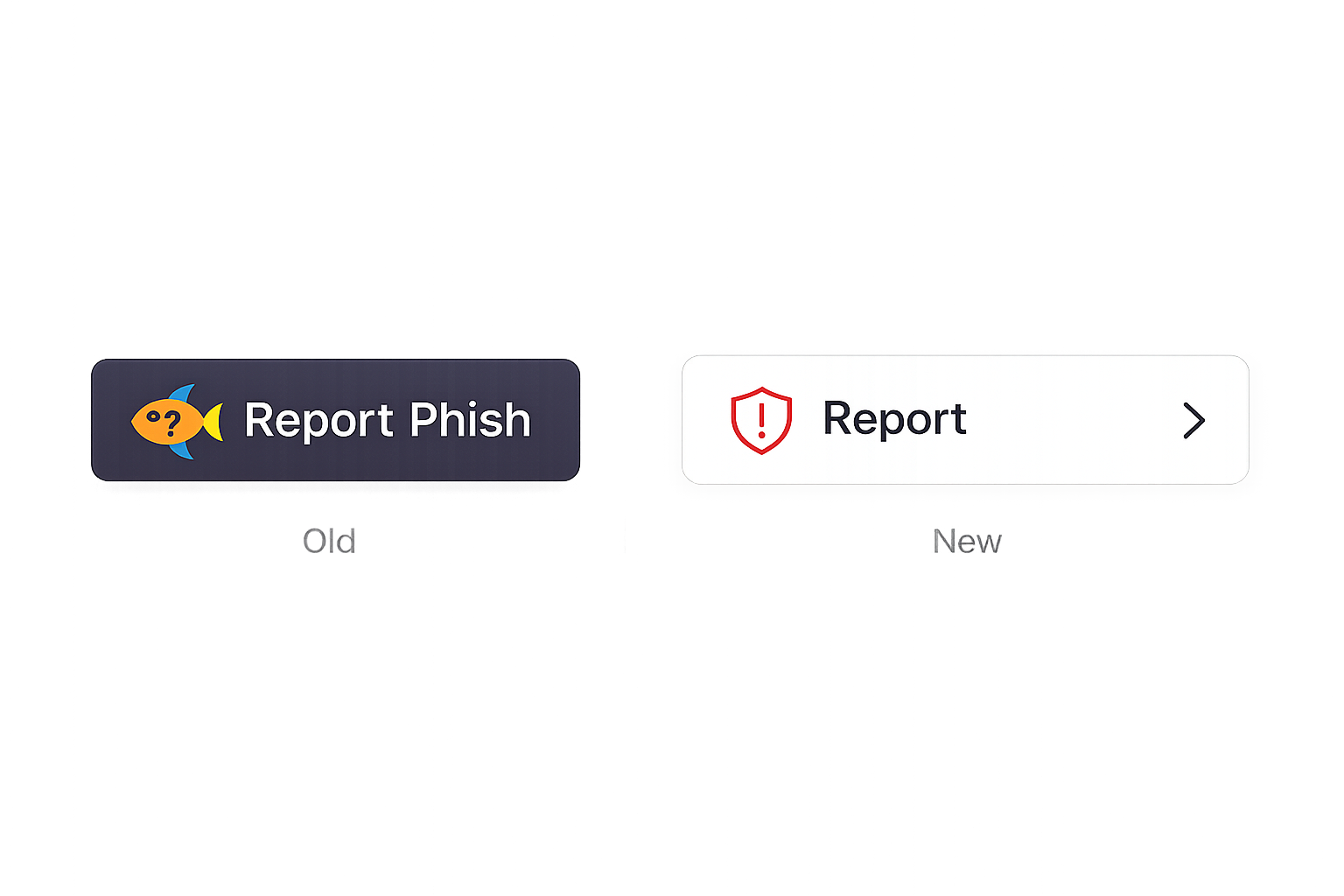
Report a suspicious email straight from Outlook with the Microsoft Report button. Find it on the shield icon when a message is open, or by right-clicking a message.
The old Report Phish button is now the Microsoft Report button, and it covers both phishing and junk.
Messages flagged as suspicious or unwanted are held in quarantine instead of reaching your inbox. KAUST Email Management sends a digest every four (4) hours listing what was held. You will only receive a quarantine digest if one or more messages have been quarantined. If no messages are quarantined, you will not receive a digest. From the digest you can release a message, request a release, or block the sender. You can also open the Quarantine Portal any time.
Open Quarantine PortalDuring the rollout, the new protections learn KAUST's email patterns and keep improving how messages are sorted. A few messages may be sorted incorrectly at first, and accuracy improves over time.
IT will keep tuning trusted senders and controls, and a short survey will follow so you can share feedback. Hit a snag? Contact the IT Service Desk.