Back to Top


KAUST IT / I want to

Back up and restore my files

Atempo Lina saves your files in the background all day, so you can get your own work back when something goes wrong. Nothing to schedule, nothing to remember. Two things are worth knowing up front: it only protects the folders you choose, and each file stays recoverable for two months after it was last saved.

Let us walk through it

Answer two quick questions and you will only see the steps that apply to you.

1What do you want to do?
2Which computer?

What do you want to do?

Pick one. You can come back and choose something else at any time.

Which computer are you using?

We have picked the one you seem to be on. Change it if that is wrong.

Install Atempo Lina

Open Software Center

Click the Start menu. Type Software Center and open it. This is where you install approved apps on a KAUST Windows computer.
No admin rights needed. You do not need admin rights. Every app in Software Center is approved for KAUST managed computers.

New to installing apps yourself? See Installing software on your KAUST device for the basics.
Install Atempo Lina

Find Atempo Lina

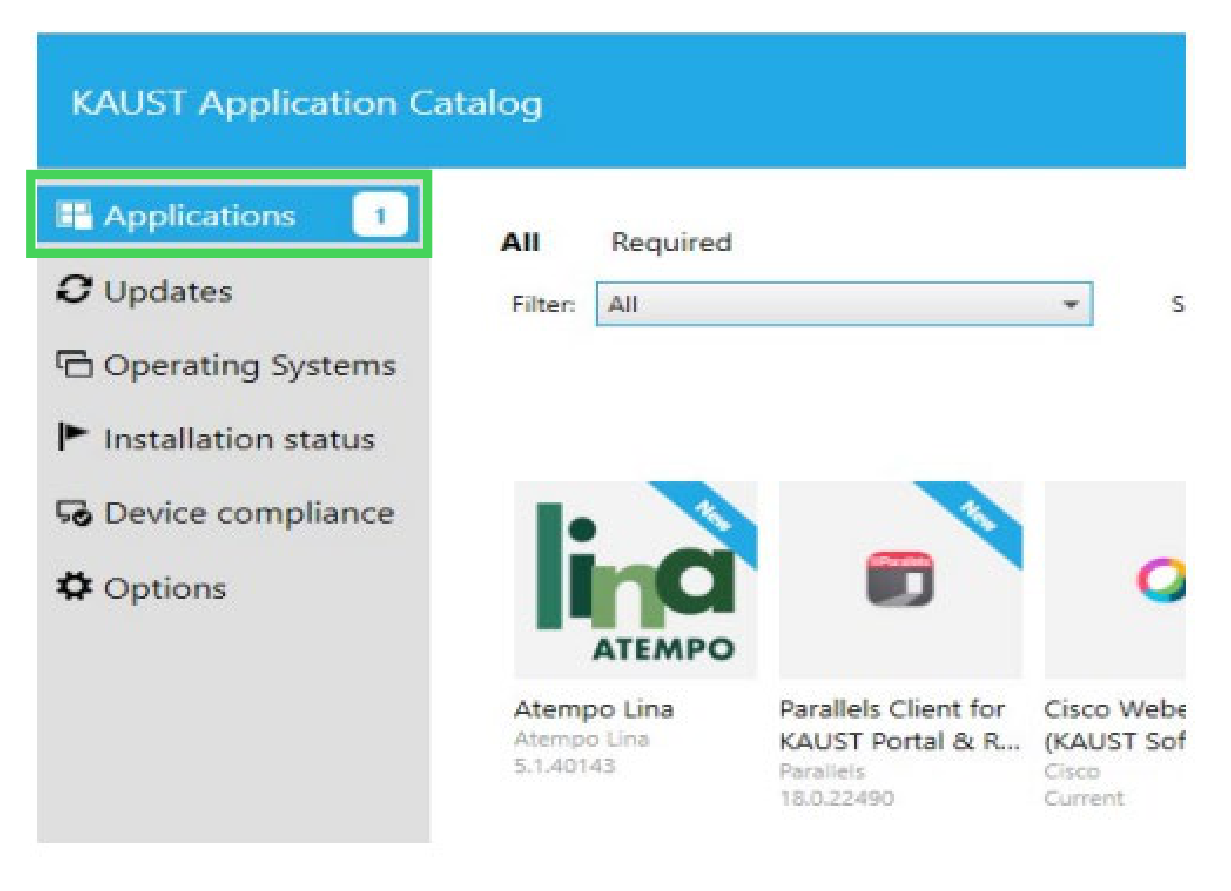
Click the Applications tab. Find Atempo Lina in the list and click it.
Click to enlarge
The Applications tab in Software Center, with Atempo Lina in the list
Install Atempo Lina

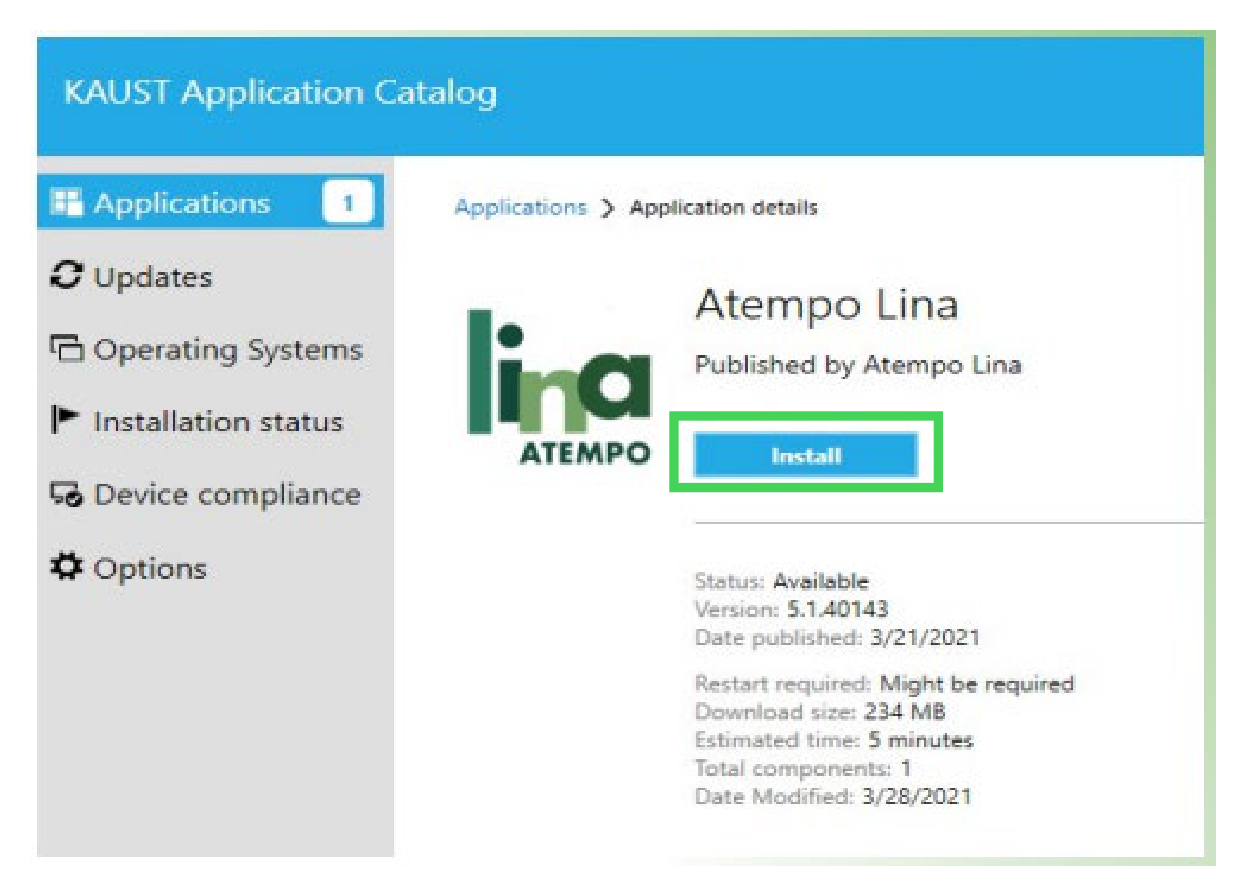
Click Install

On the details page, click Install. Installing and setting up takes about five minutes. Your computer may need to restart.
Click to enlarge
The Atempo Lina details page with the Install button
Install Atempo Lina

Open Self Service+

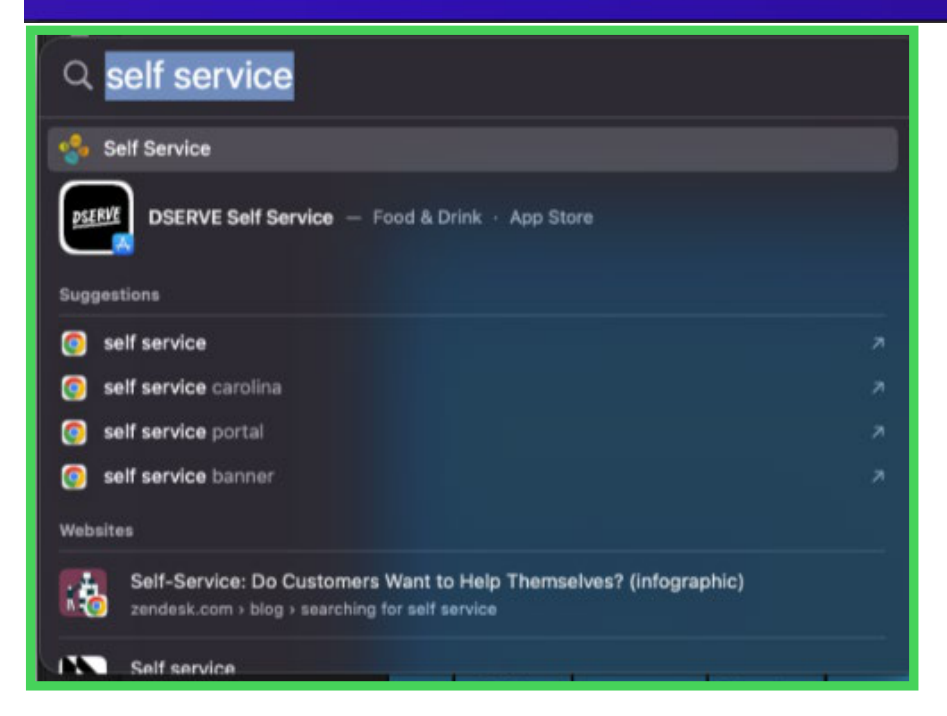
Press Command and Space to open Spotlight. Type Self Service+ and open it. This is where you install approved apps on a KAUST macOS computer.
No admin rights needed. You do not need admin rights. Every app in Self Service+ is approved for KAUST managed computers.

New to installing apps yourself? See Installing software on your KAUST device for the basics.
Click to enlarge
Spotlight search on macOS finding the Self Service+ app
Install Atempo Lina

Find and install the app

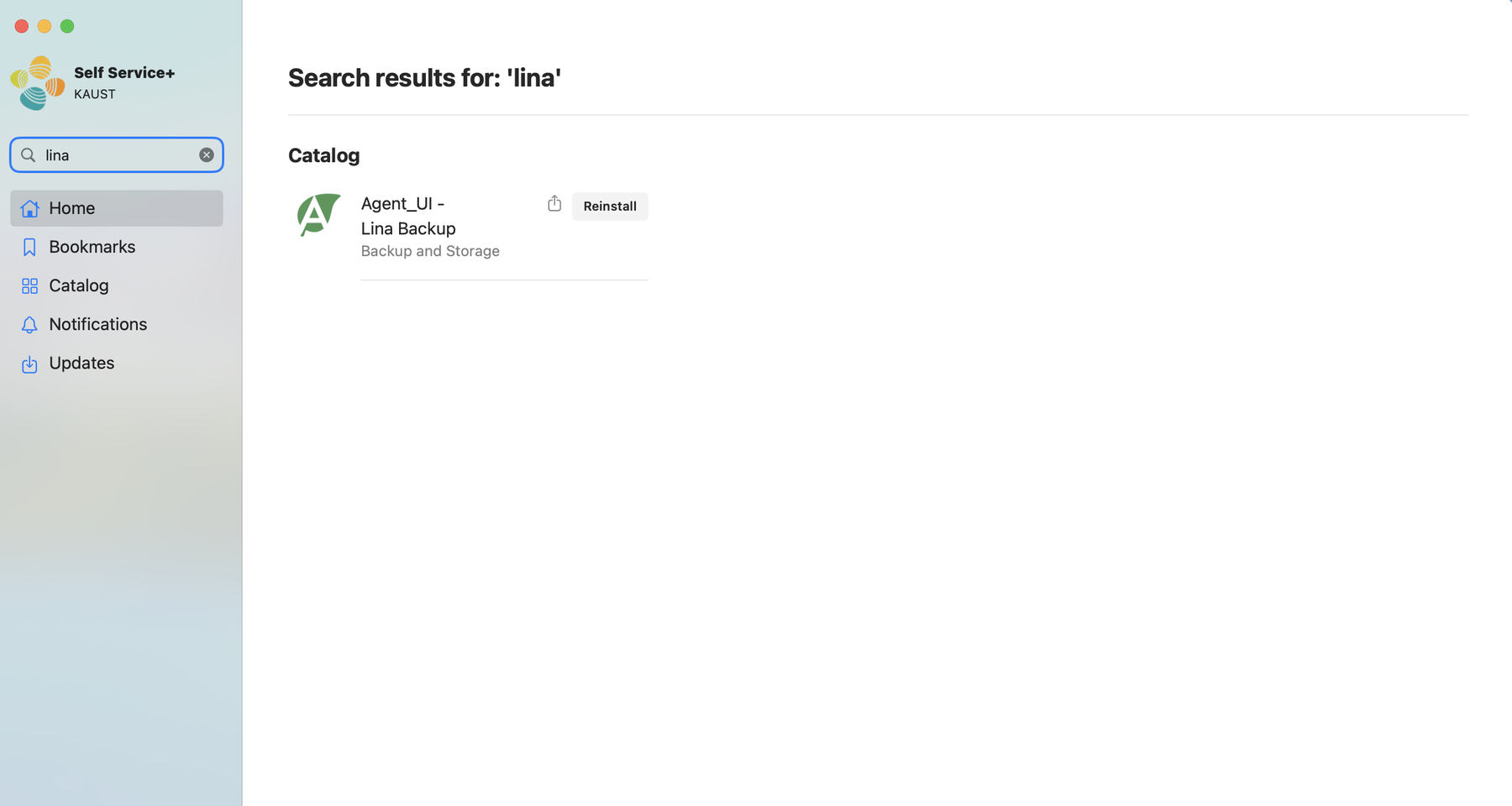
In Self Service+, search for lina. The app is listed as Agent_UI - Lina Backup. Click it, then click Install. Installing and setting up takes about five minutes.
macOS will ask for permission later, not now. You do not need to change any system settings to install. The first time you add a folder, macOS asks whether the app can read it. Click Allow when that appears.
Click to enlarge
Self Service+ showing Agent_UI - Lina Backup in the catalog
Install Atempo Lina

Sign in

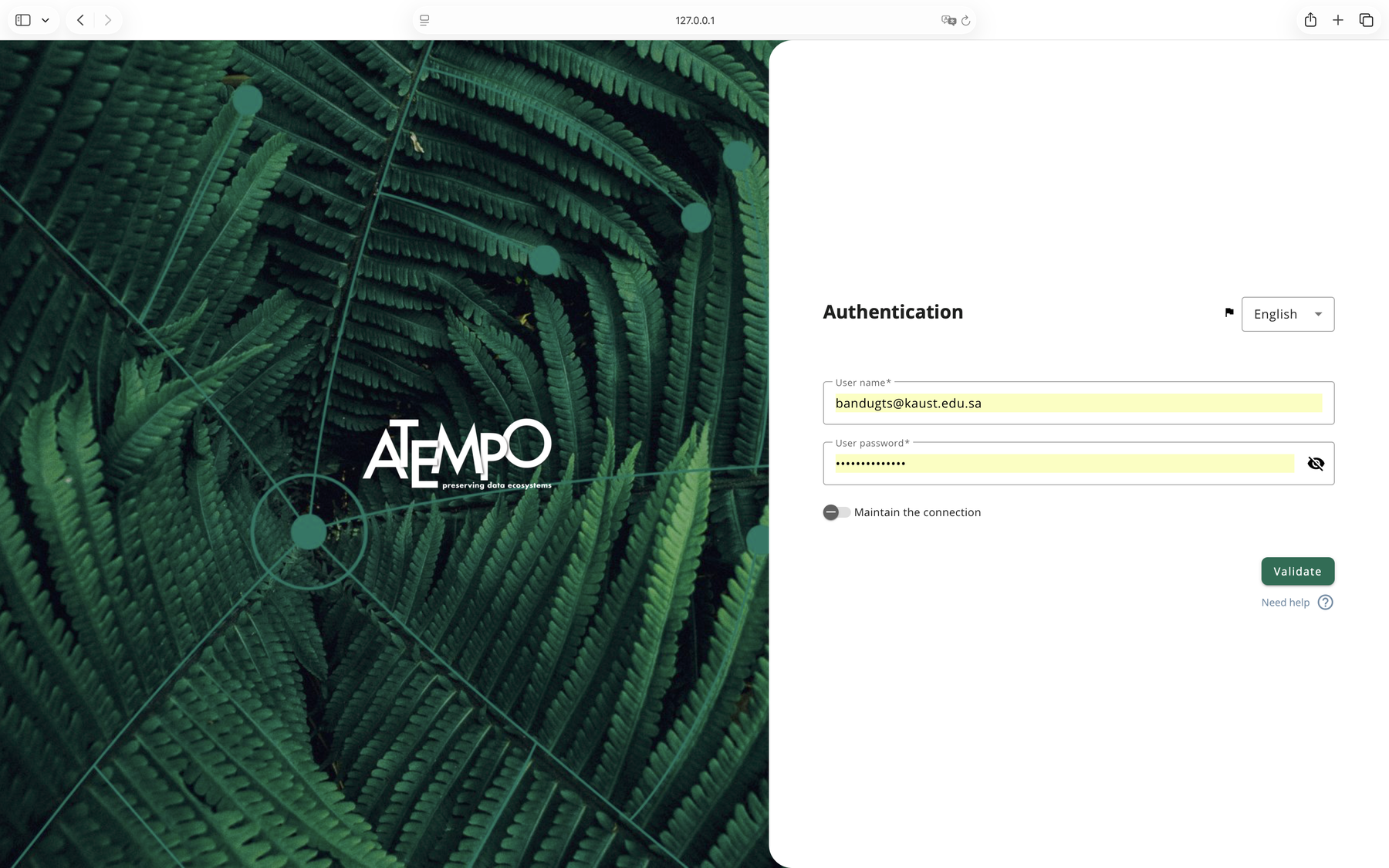
Atempo Lina opens in your browser. Sign in with your KAUST username in the form username@kaust.edu.sa, and your usual KAUST password. The Maintain the connection toggle can be left either way, it makes no difference.
You are not backed up yet. Installing the app does not save any files. You still need to tell Atempo Lina which folders to protect, which is the next task on this page.
Click to enlarge
The Atempo Lina sign in page, asking for a username and password
Choose what to back up

Open Atempo Lina and sign in

Click the Start menu, type Atempo Lina, and open it. It opens in your browser. Sign in with your KAUST username in the form username@kaust.edu.sa, and your usual KAUST password.
Do this early. The best time to do this is the day you get a new computer. Set it up early and you are covered from then on. Do it again every time you get a new computer.
Choose what to back up

Open Atempo Lina and sign in

Press Command and Space, type Atempo Lina, and open it. It opens in your browser. Sign in with your KAUST username in the form username@kaust.edu.sa, and your usual KAUST password.
Do this early. The best time to do this is the day you get a new computer. Set it up early and you are covered from then on. Do it again every time you get a new computer.
Choose what to back up

Open Settings

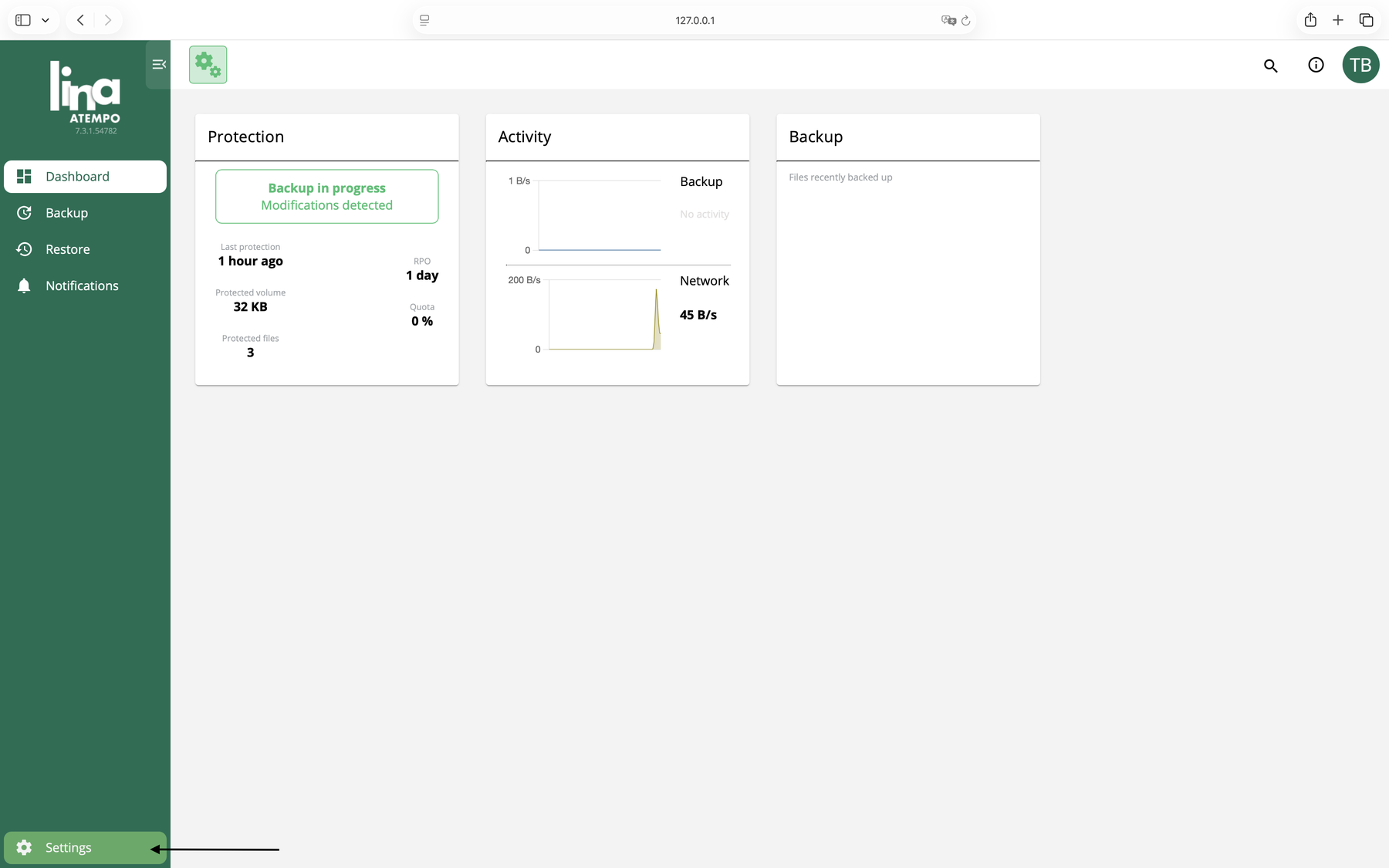
Click Settings at the bottom of the menu on the left.
Click to enlarge
The Atempo Lina dashboard, with Settings at the bottom of the menu
Choose what to back up

Add your email address

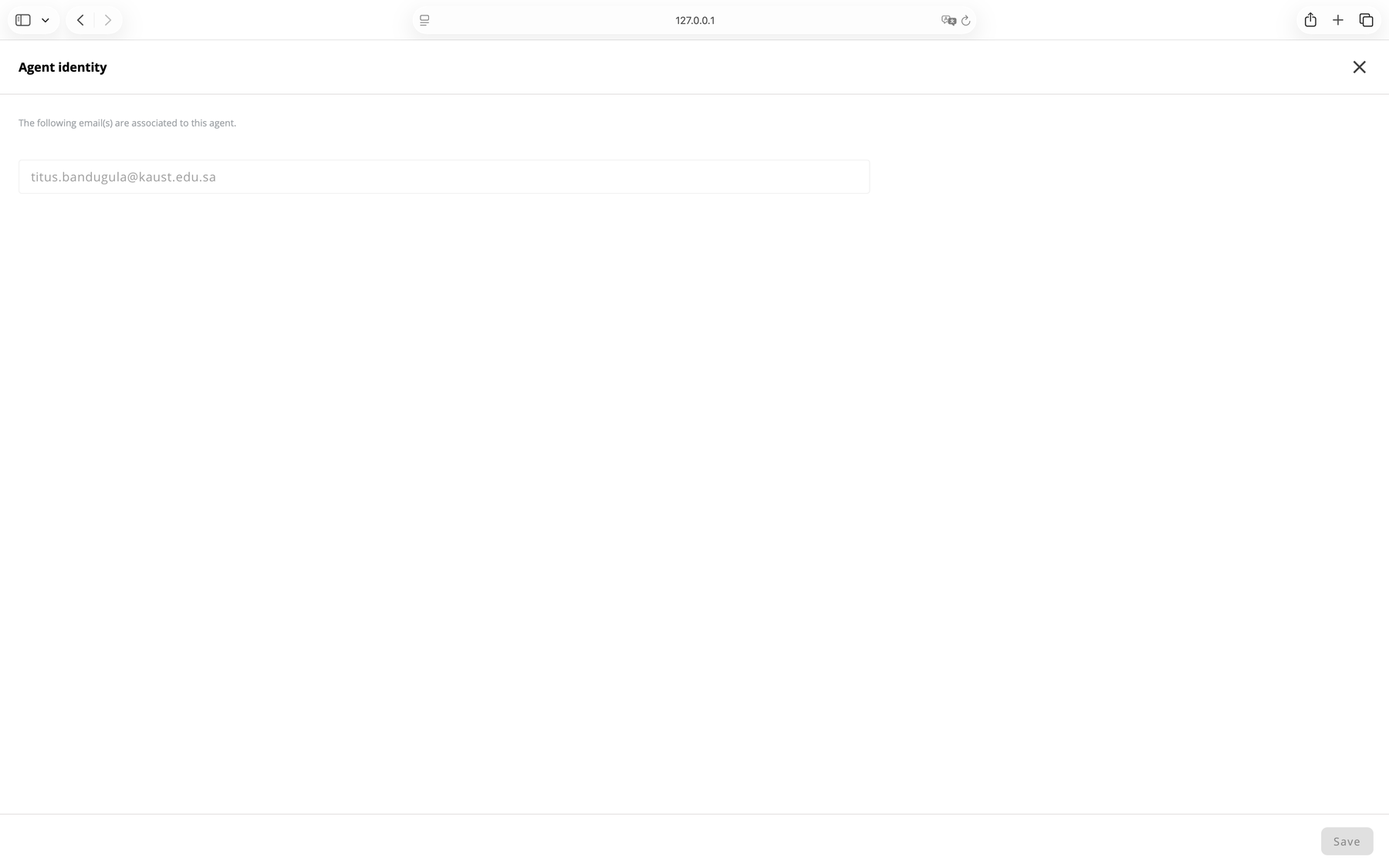
Click Identity, type your KAUST email address, and click Save. This is required if you later need to recover your files to another computer.
Do not skip this one. Adding your email address is necessary if your files ever need to be recovered to a different computer, for example if your current computer is replaced, lost or stops working.
Click to enlarge
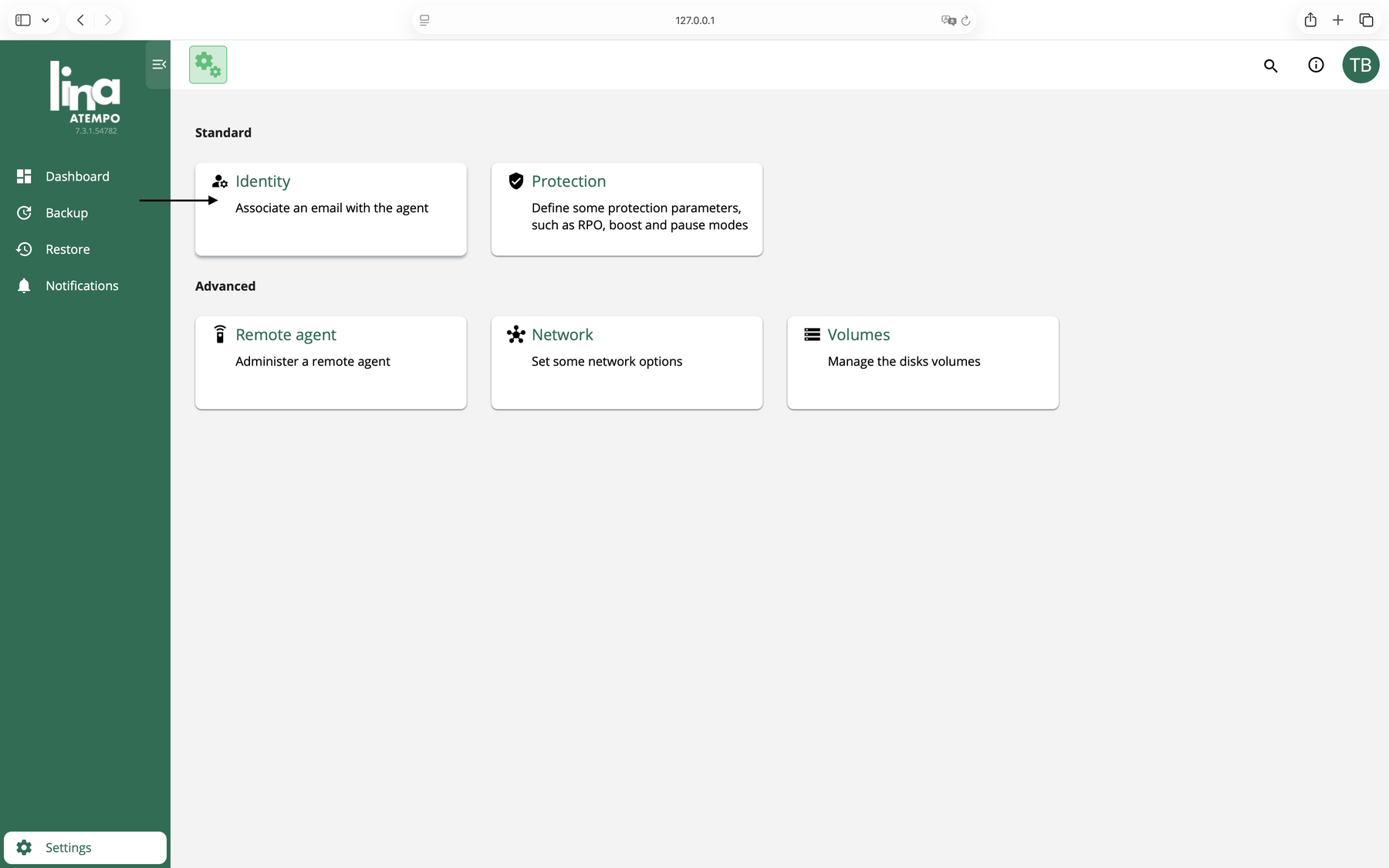
The Settings page, with Identity in the Standard group
Click to enlarge
The Agent identity page, with the email address box and Save button
Choose what to back up

Go to Backup

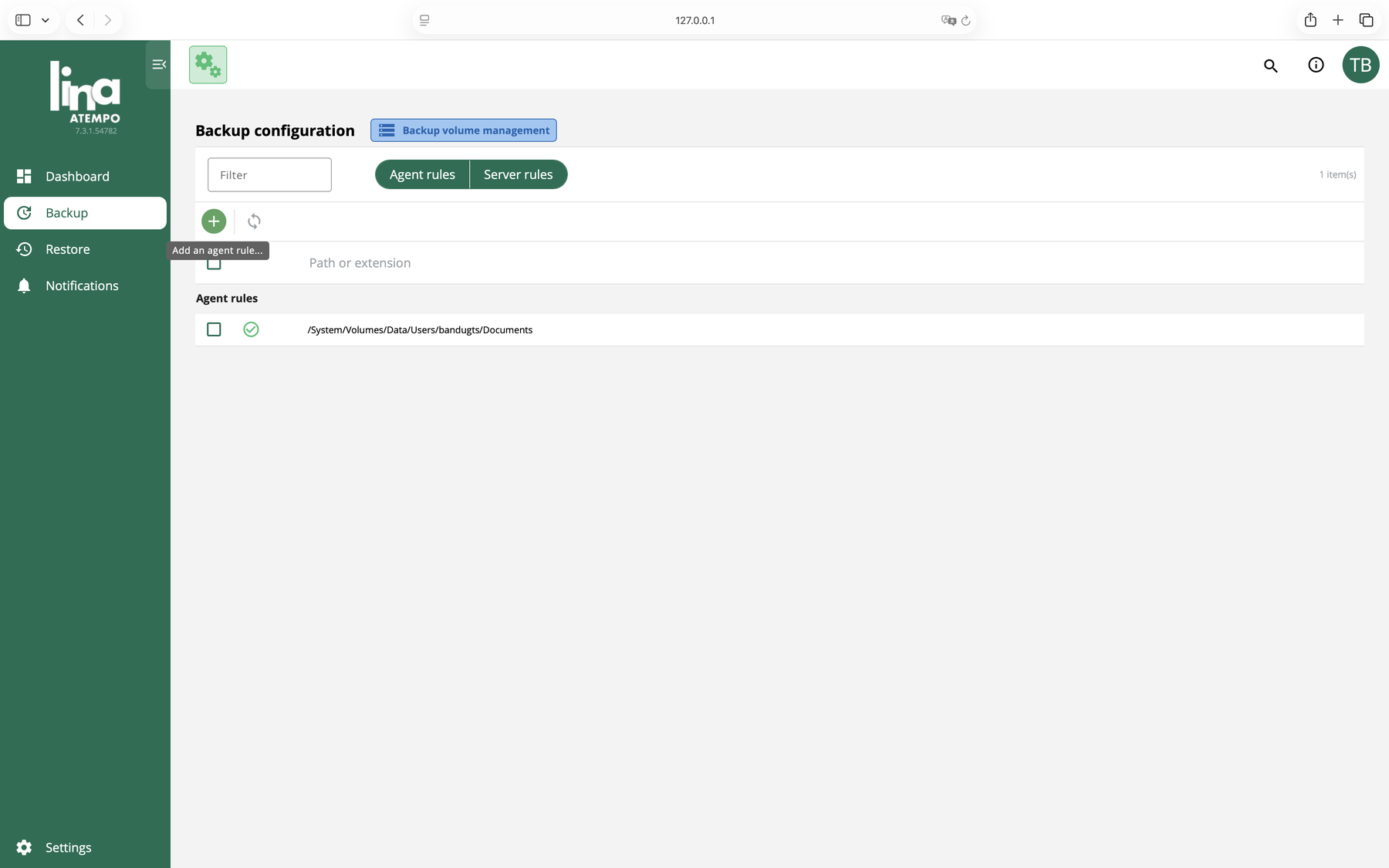
Click Backup in the menu on the left. This is your list of protected folders, and it is called Agent rules.
An empty list means nothing is saved. Nothing is protected automatically and IT does not choose folders for you. Whatever is on this list is what gets saved, and nothing else.
Click to enlarge
The Backup configuration page showing the Agent rules list and the plus button
Choose what to back up

Add a folder

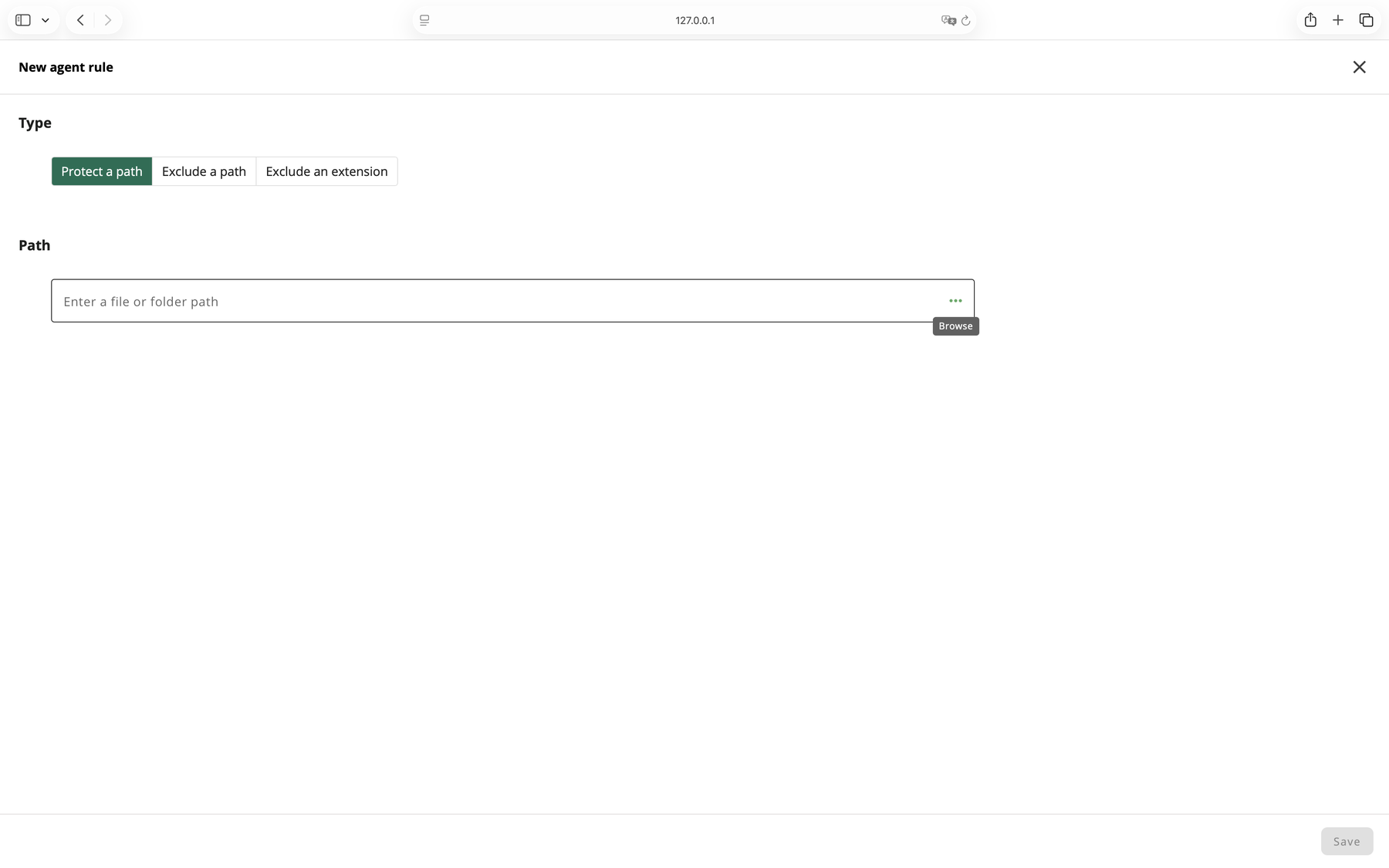
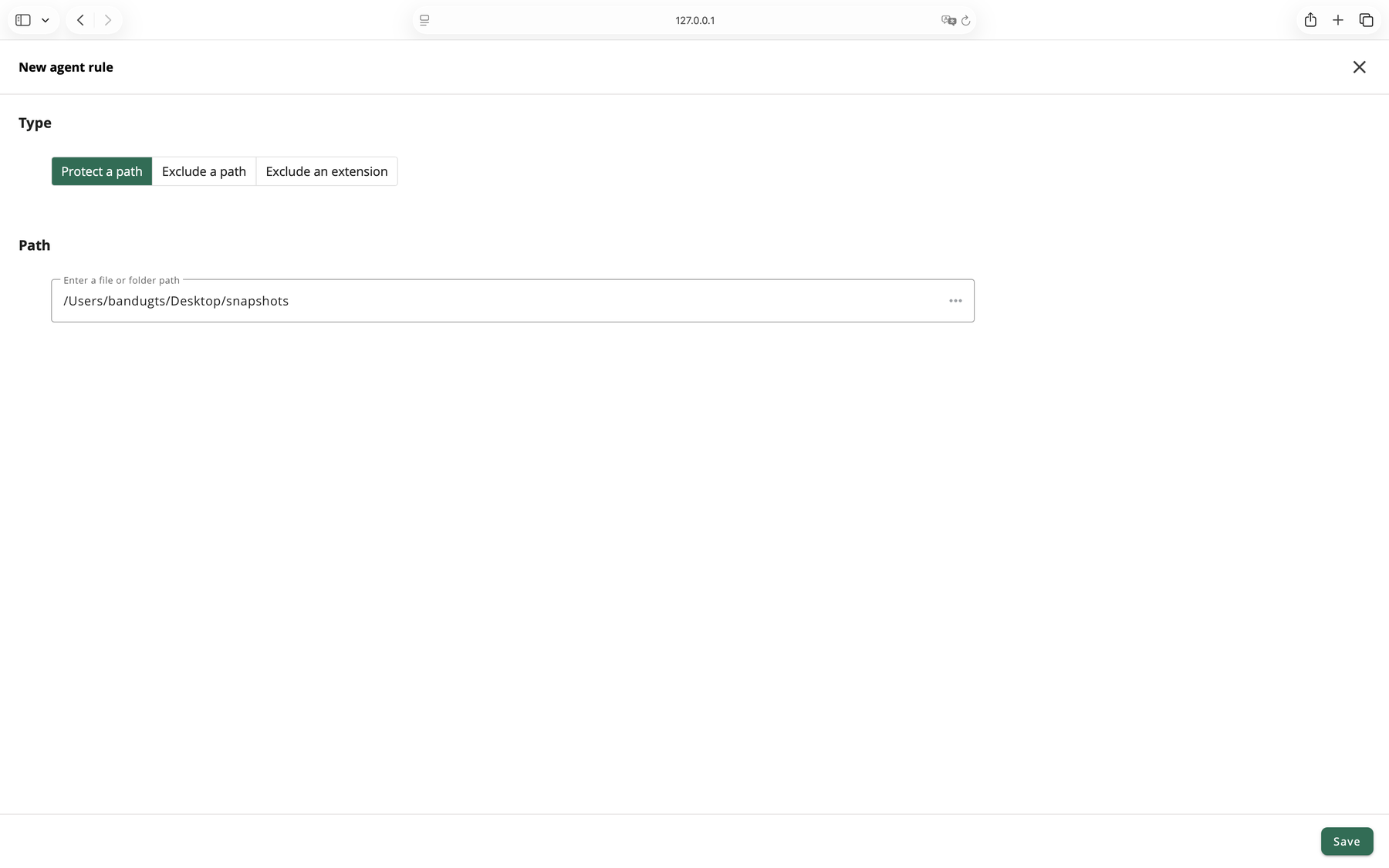
Click the plus button. Leave the type set to Protect a path, then click the three dots at the end of the path box to browse your computer.
Click to enlarge
The New agent rule page, with Protect a path selected and the browse button
Choose what to back up

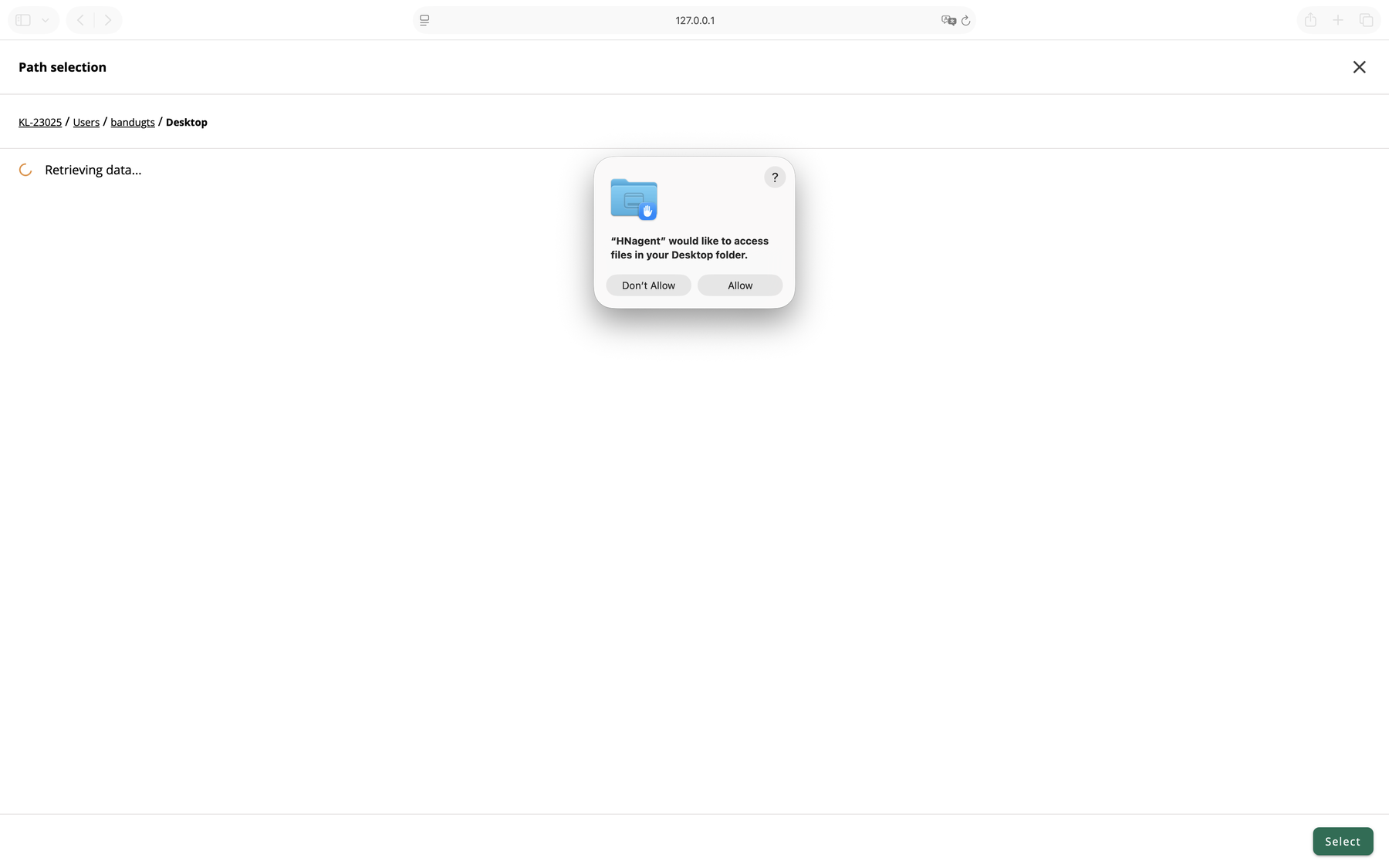
Allow access to the folder

macOS asks whether HNagent can read the folder you are opening. Click Allow. You may see this more than once as you add folders. You do not need admin rights, because you are only granting access to folders you can already open yourself.
Click Allow, not Don't Allow. If you refuse, that folder cannot be backed up, and the app will not warn you again.
Click to enlarge
The macOS prompt asking whether HNagent can access the Desktop folder
Choose what to back up

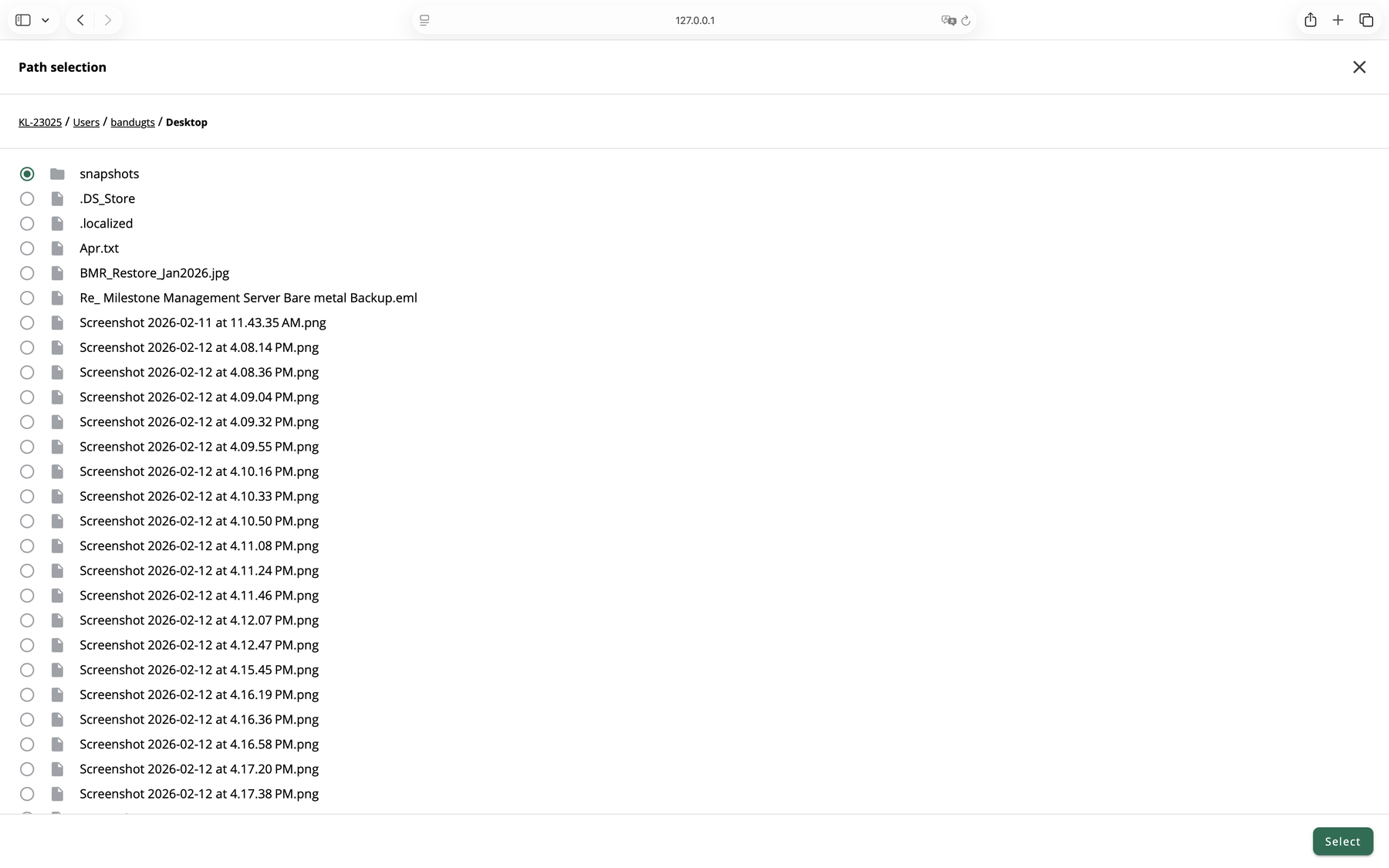
Pick your folder and save

Choose the folder you want to keep safe and click Select, then click Save. Desktop, Documents and Downloads are all worth adding. Add one folder at a time and repeat for each one.
Do not back up the same folder twice. Skip any folder that OneDrive, SharePoint or Google Drive already saves for you. Here is why. Those services keep your files up to date in the cloud while you work. Atempo Lina works in a different way. It keeps its own copy, and a restore brings back the copy from the date you pick. If a folder is in both places, you can end up with two versions of the same file and no easy way to tell which one is newer. Pick folders your cloud storage does not already handle.
Click to enlarge
The Path selection page, with a folder ready to select
Click to enlarge
The New agent rule page with the chosen folder filled in and the Save button active
Choose what to back up

Check that it is working

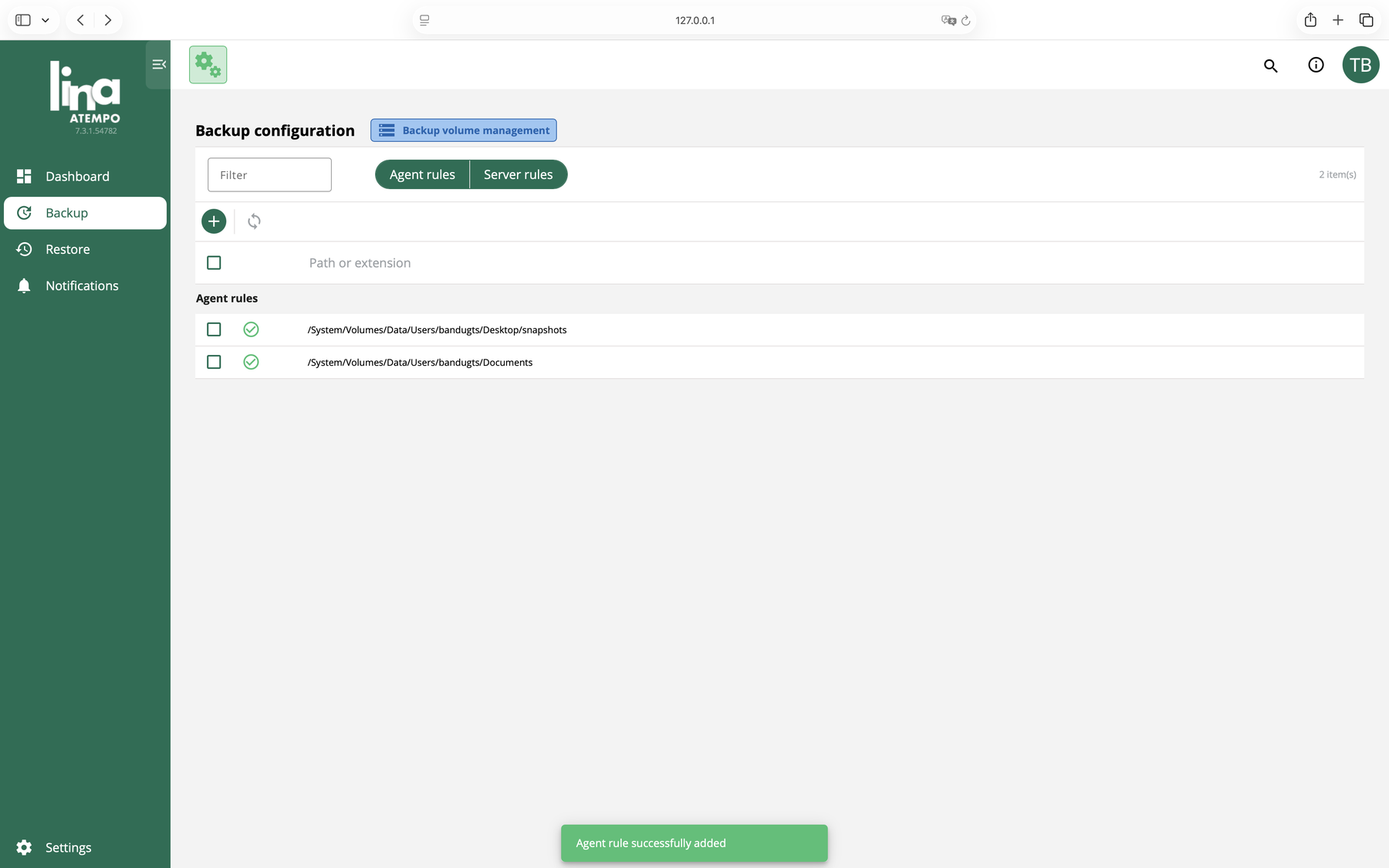
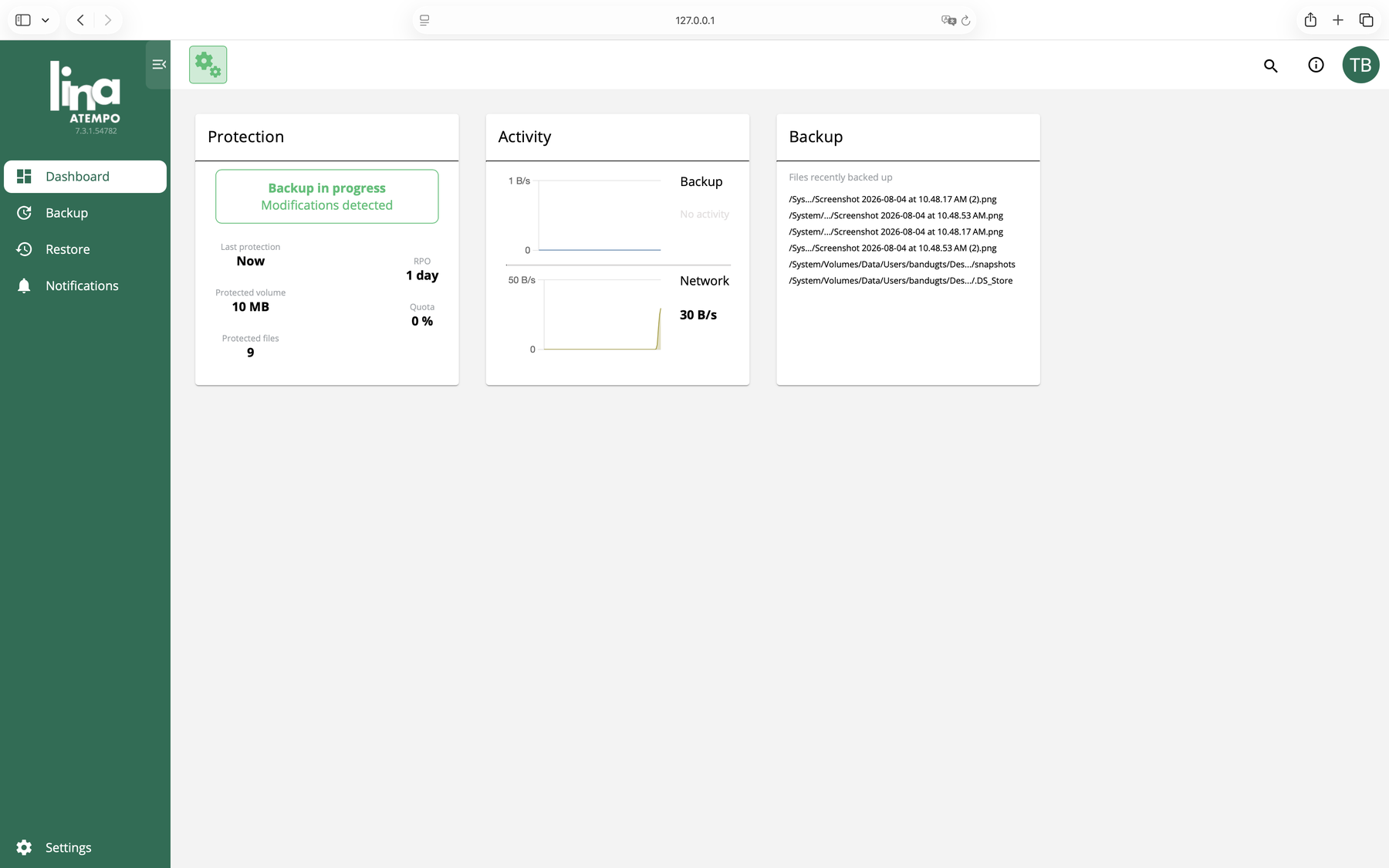
Your folder appears in the Agent rules list. Click Dashboard and you will see the backup running, with recently saved files listed on the right. The first backup can take a while, because everything has to be copied once. After that only your changes are copied, so it keeps up quietly on its own.
Backups need the KAUST network. Atempo Lina saves your files over the KAUST network. On campus that means a wired connection, iCampus or Uni-Fi. Off campus, connect to VPN and it works normally, though how quickly it runs depends on your internet connection. While you are off the network and not connected to VPN, nothing new is saved, and it picks up again on its own once you reconnect.
Click to enlarge
The Agent rules list with the new folder added
Click to enlarge
The dashboard showing protected files and recently saved items
Get a file back on this computer

Open Atempo Lina and sign in

Click the Start menu, type Atempo Lina, and open it. Sign in with your KAUST username in the form username@kaust.edu.sa, and your usual KAUST password.
Get a file back on this computer

Open Atempo Lina and sign in

Press Command and Space, type Atempo Lina, and open it. Sign in with your KAUST username in the form username@kaust.edu.sa, and your usual KAUST password.
Get a file back on this computer

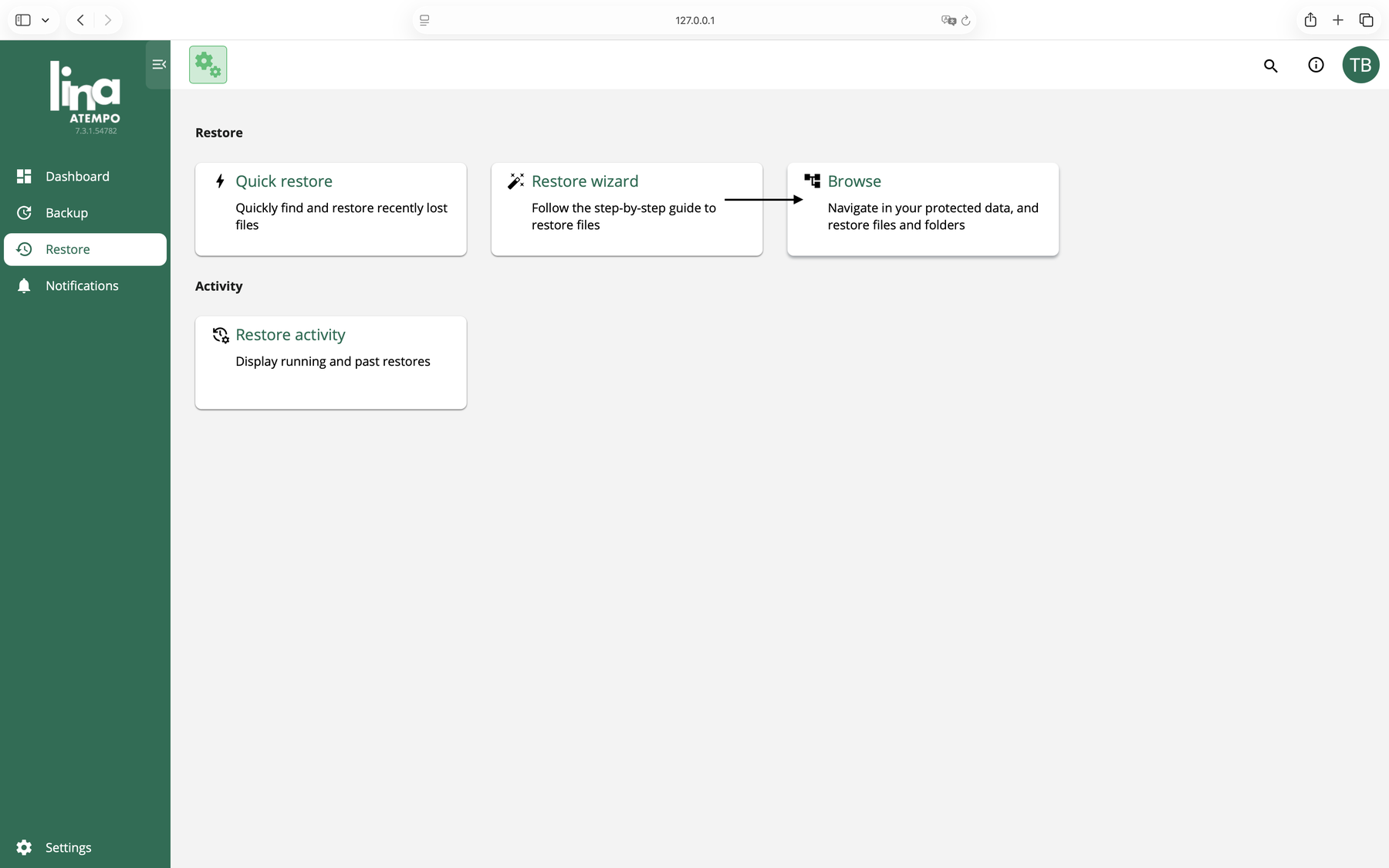
Go to Restore, then Browse

Click Restore in the menu on the left, then click Browse. Browse shows your protected folders exactly as they looked on a date you choose, which is all you need to get a file back.
Click to enlarge
The Restore page, with Browse ready to open
Get a file back on this computer

Pick a date and time

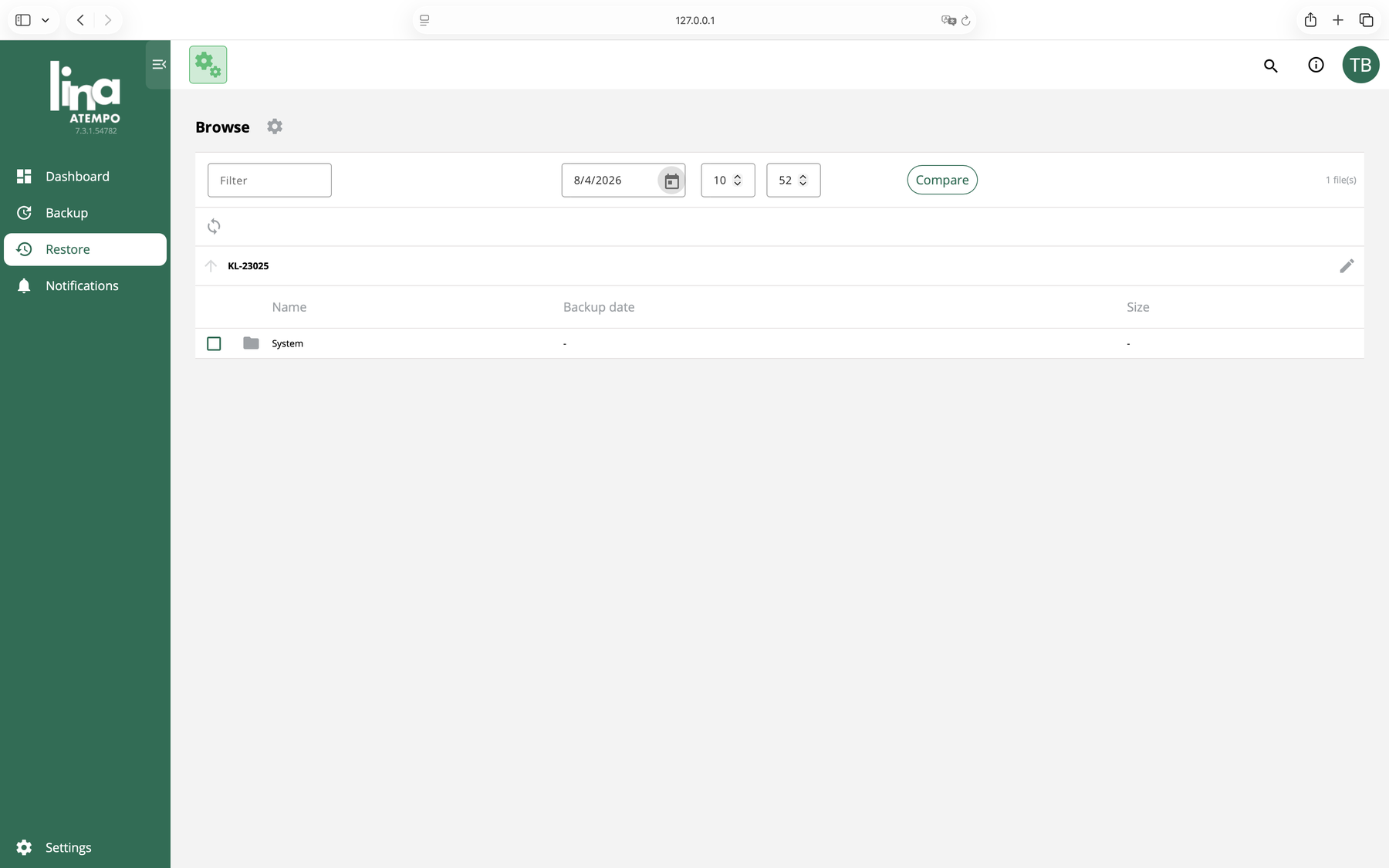
Set the date and time to roughly when the file was last saved. What you see below is your folders as they were at that moment.
Two months of history. Each file stays recoverable for two months, counted from the last time that file was backed up. You can go back to any point in that window, but not further.
Click to enlarge
The Browse page with the date and time boxes above your protected folders
Get a file back on this computer

Find your files

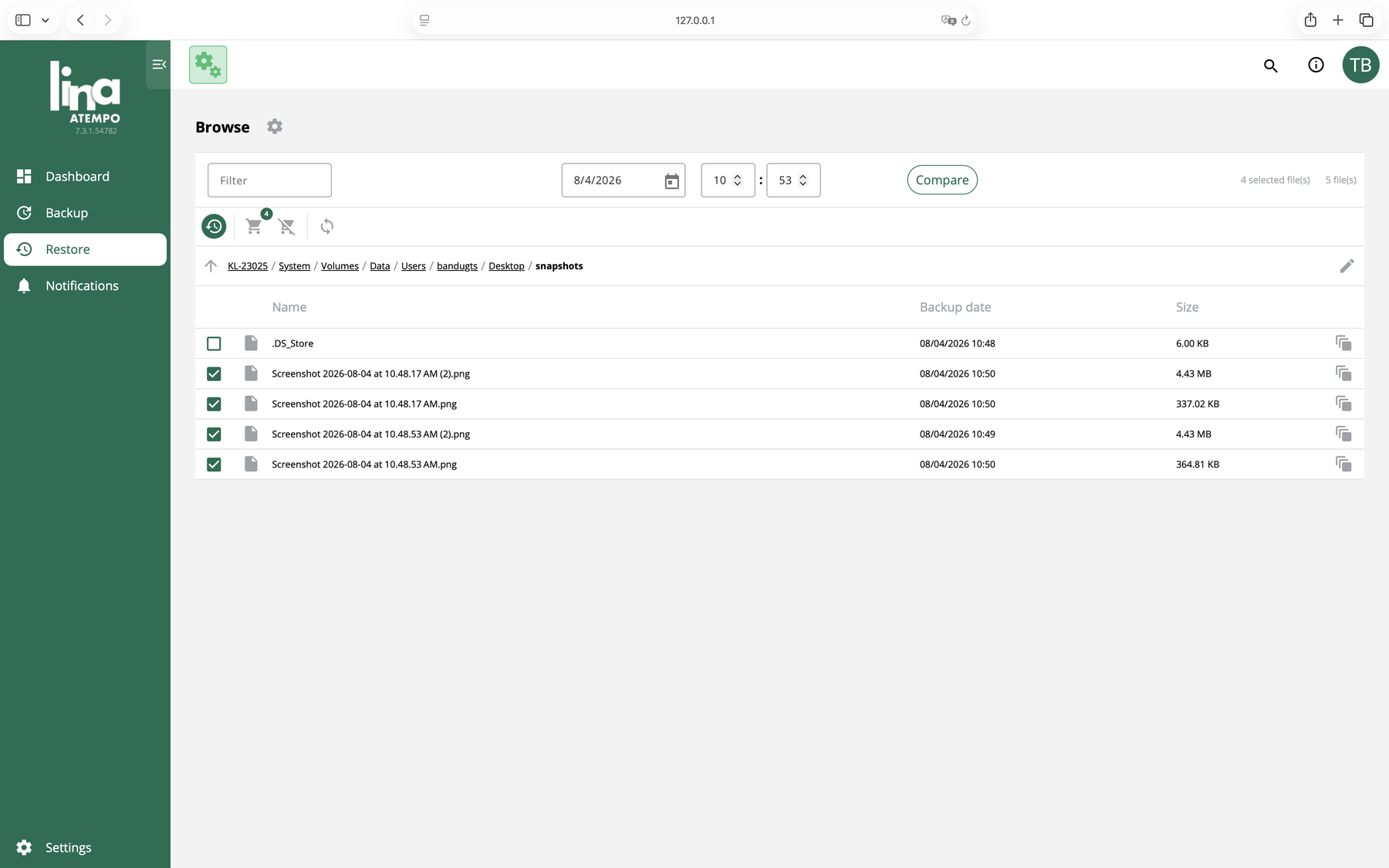
Click through your folders to find what you want. Tick the box next to each file or folder you want back.
Click to enlarge
A protected folder open in Browse, with several files ticked
Get a file back on this computer

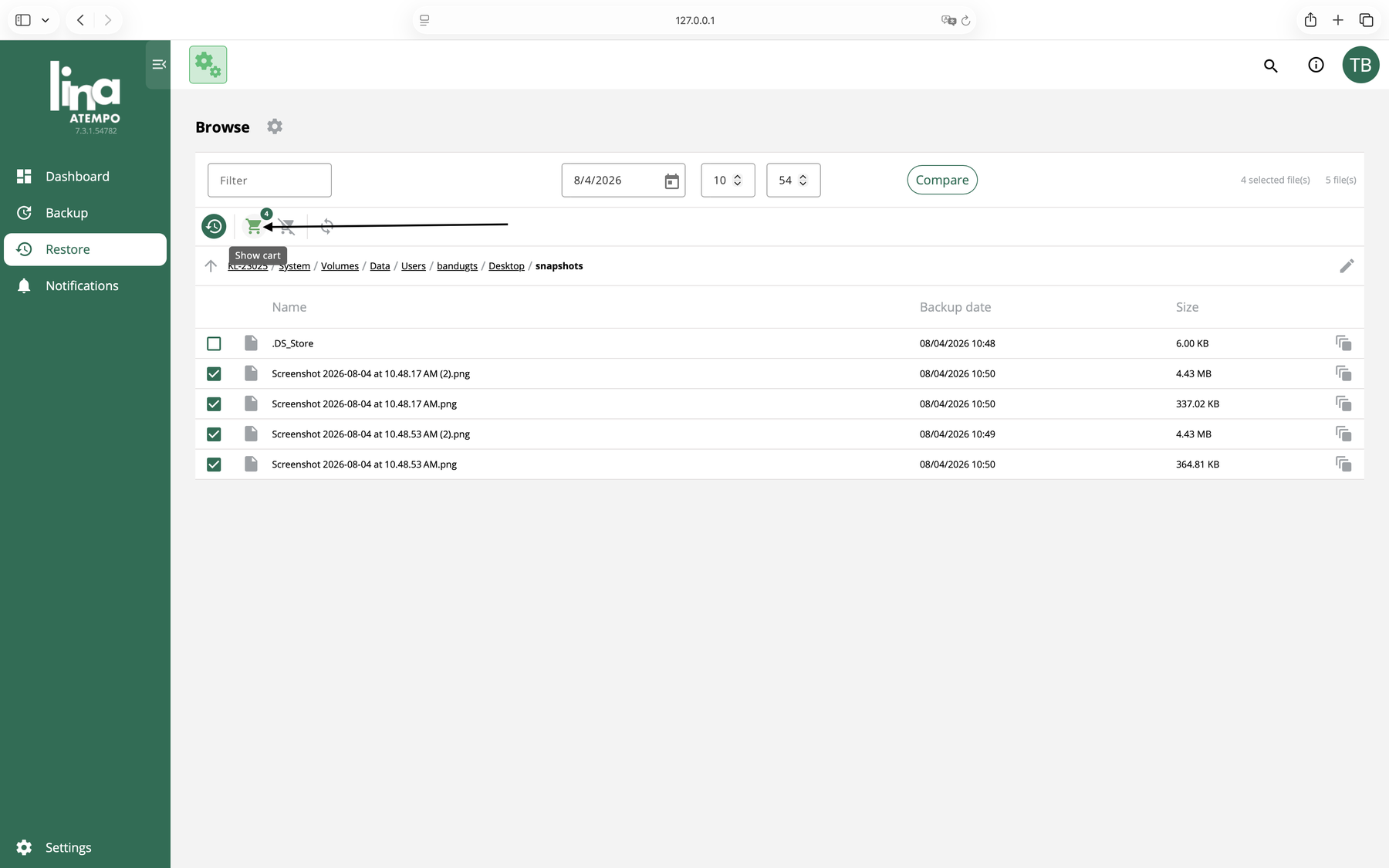
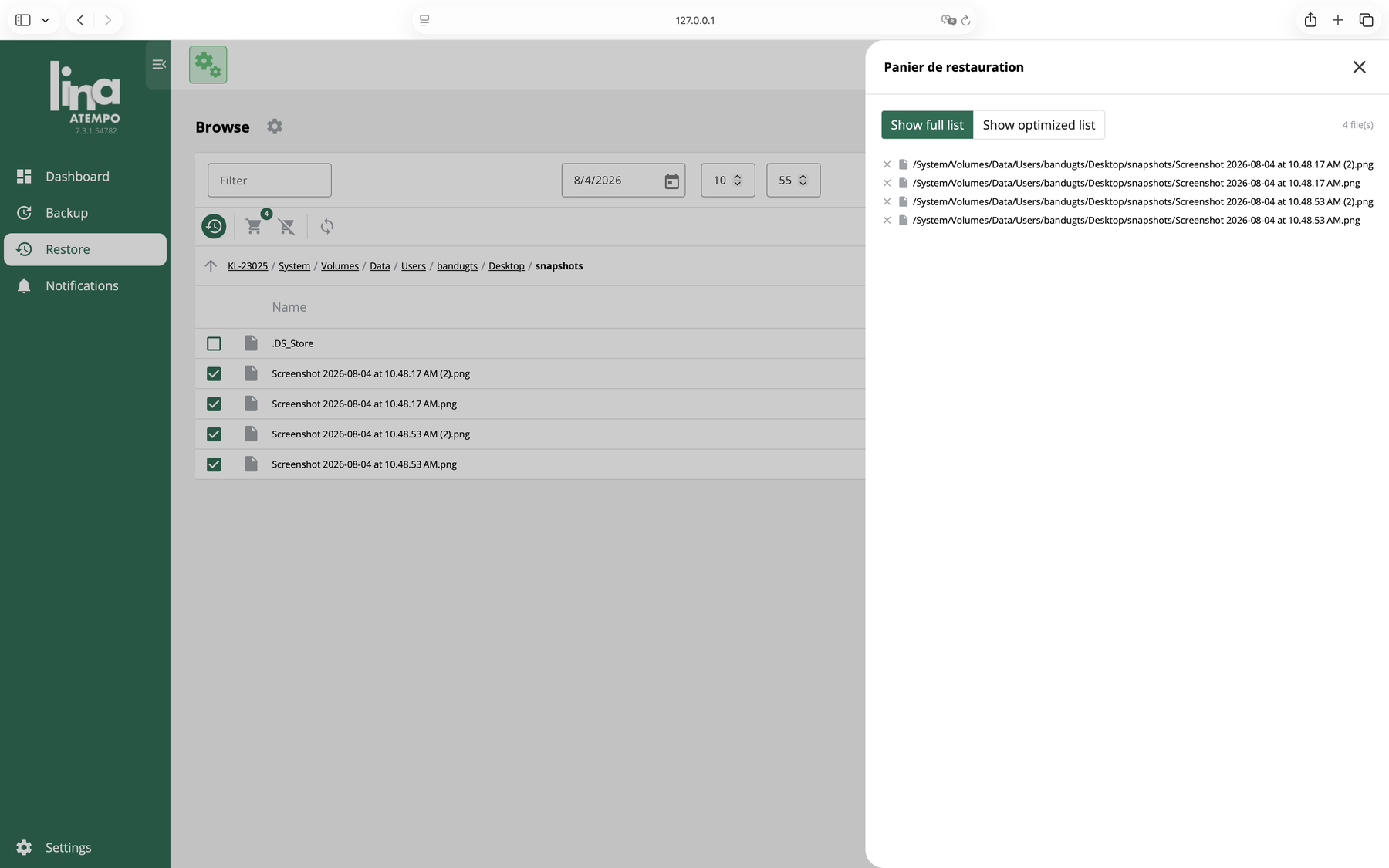
Open the restore cart

Click the cart button at the top. The number on it is how many items you have picked. A panel opens listing everything in the cart, so you can check it before anything is restored. The panel is headed Panier de restauration, which is a known translation gap in the app. Nothing has gone wrong.
Click to enlarge
The cart button above the file list, showing how many items are picked
Click to enlarge
The cart panel listing every file waiting to be restored
Get a file back on this computer

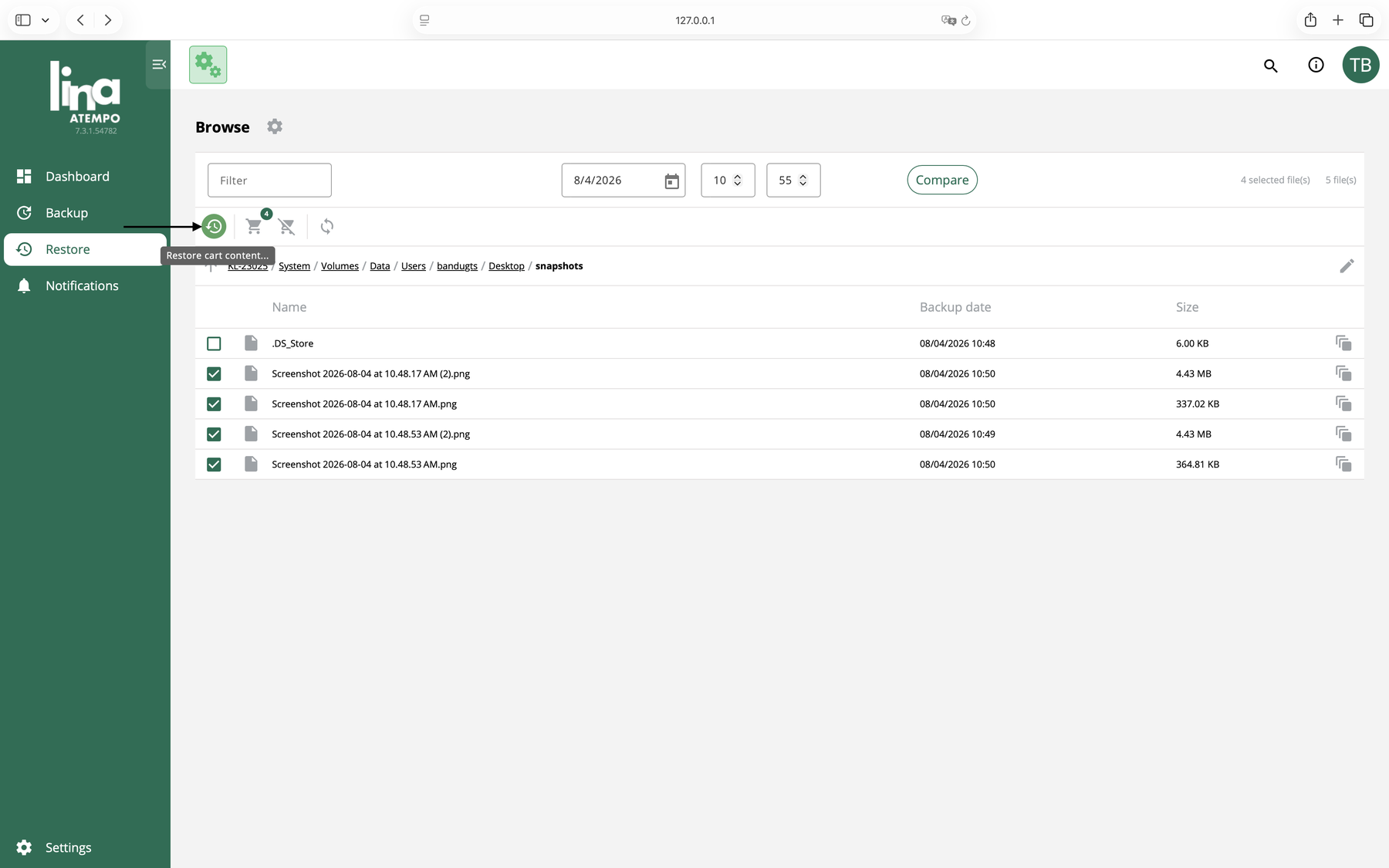
Start the restore

Close the panel and click the restore button, the circular arrow to the left of the cart.
Click to enlarge
The restore button beside the cart, ready to start the restore
Get a file back on this computer

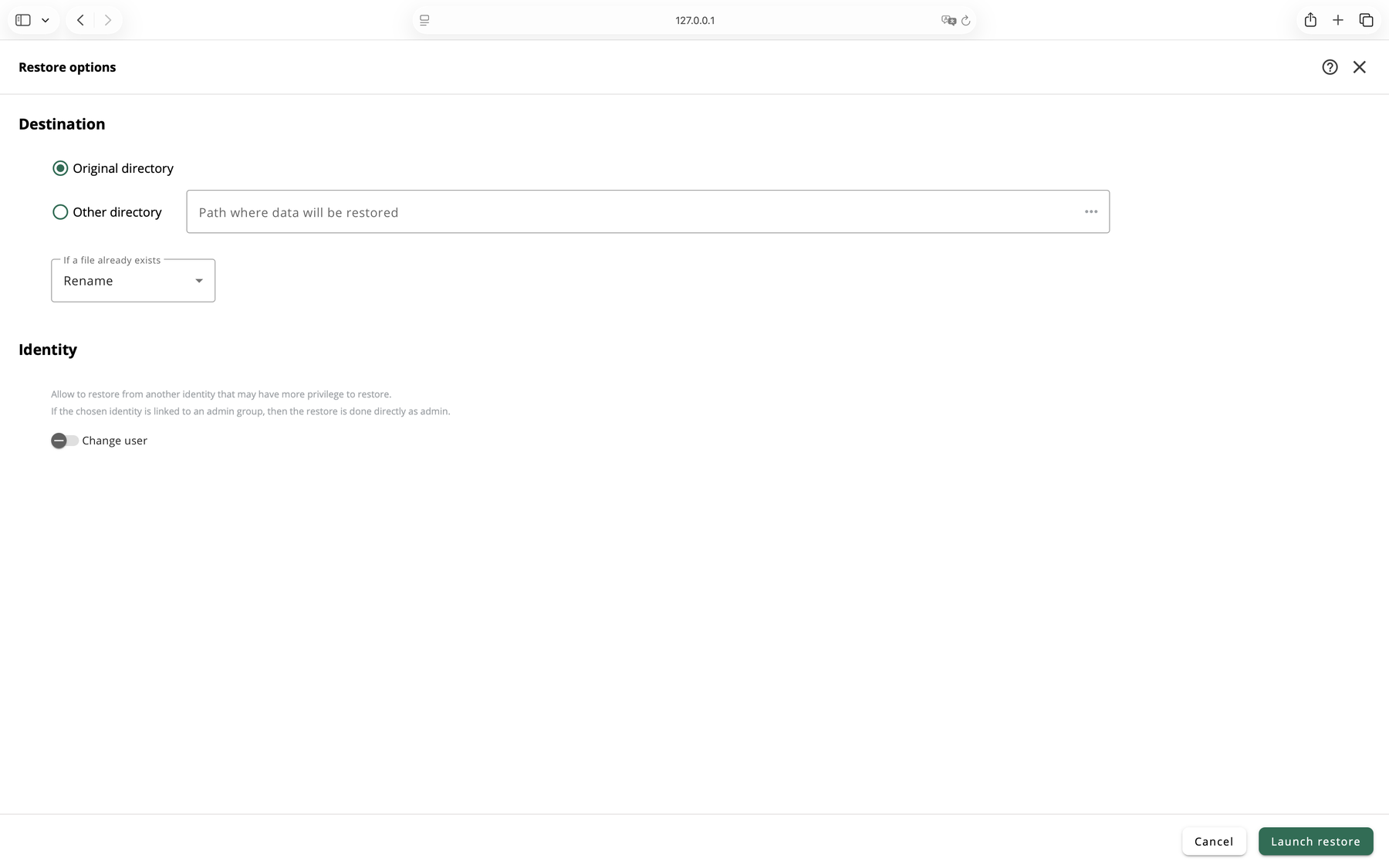
Choose where it goes

Leave Original directory selected to put the file back where it was. Your files are written straight back there, so there is no zip file to open. Then choose what happens if the file is already there, and click Launch restore.
Need the files somewhere else? Restoring to a different folder needs a KAUST IT administrator. Ask VITA or the IT Service Center to arrange it.
Read this before you click. Overwrite replaces the file you have now, and you cannot undo it. Skip leaves your current file alone. Rename keeps both copies, so you can open them and compare before you delete anything. Choose Rename if you are not sure.
Click to enlarge
The Restore options page, with the destination and the file already exists setting
Get a file back on this computer

Wait for it to finish

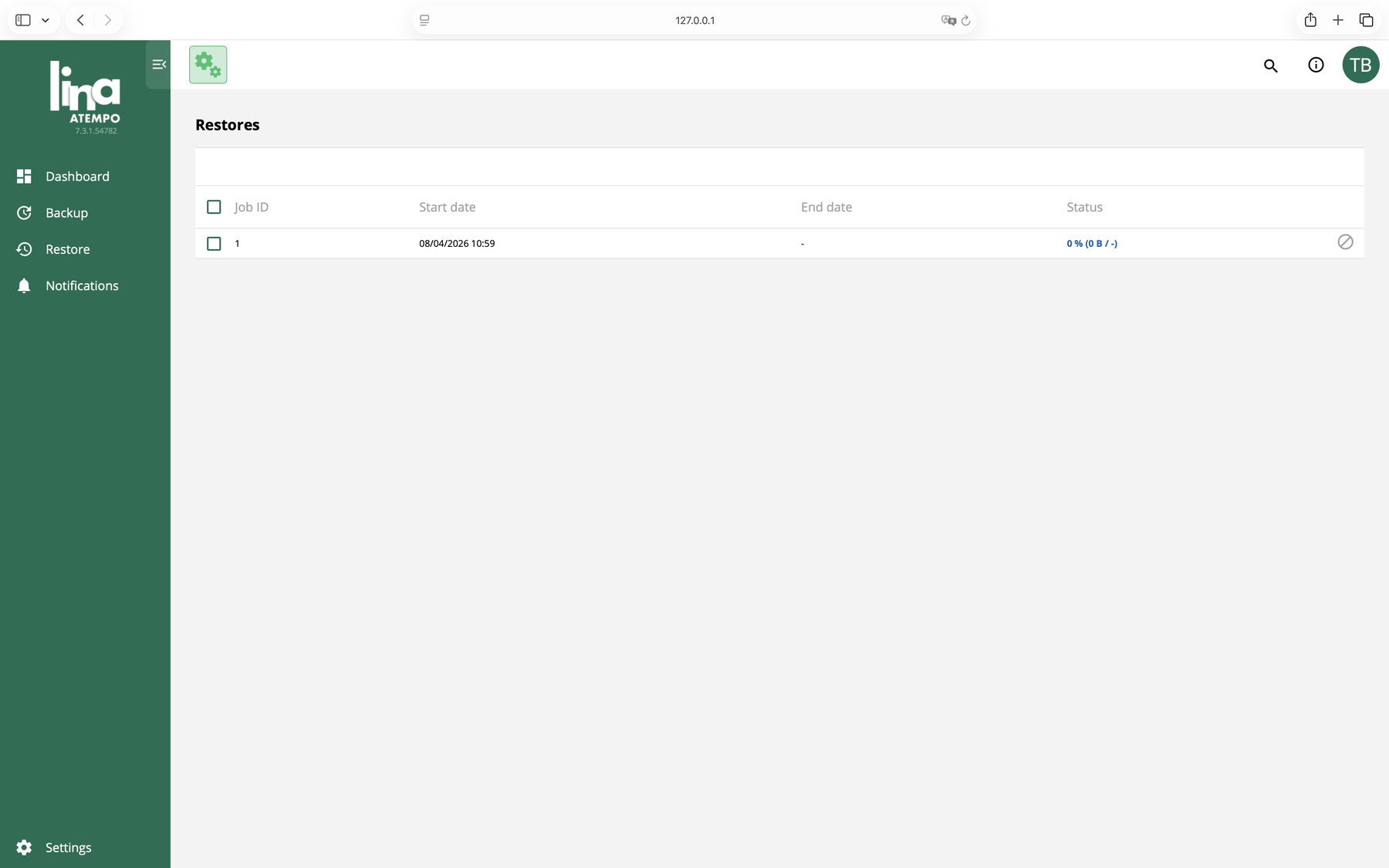
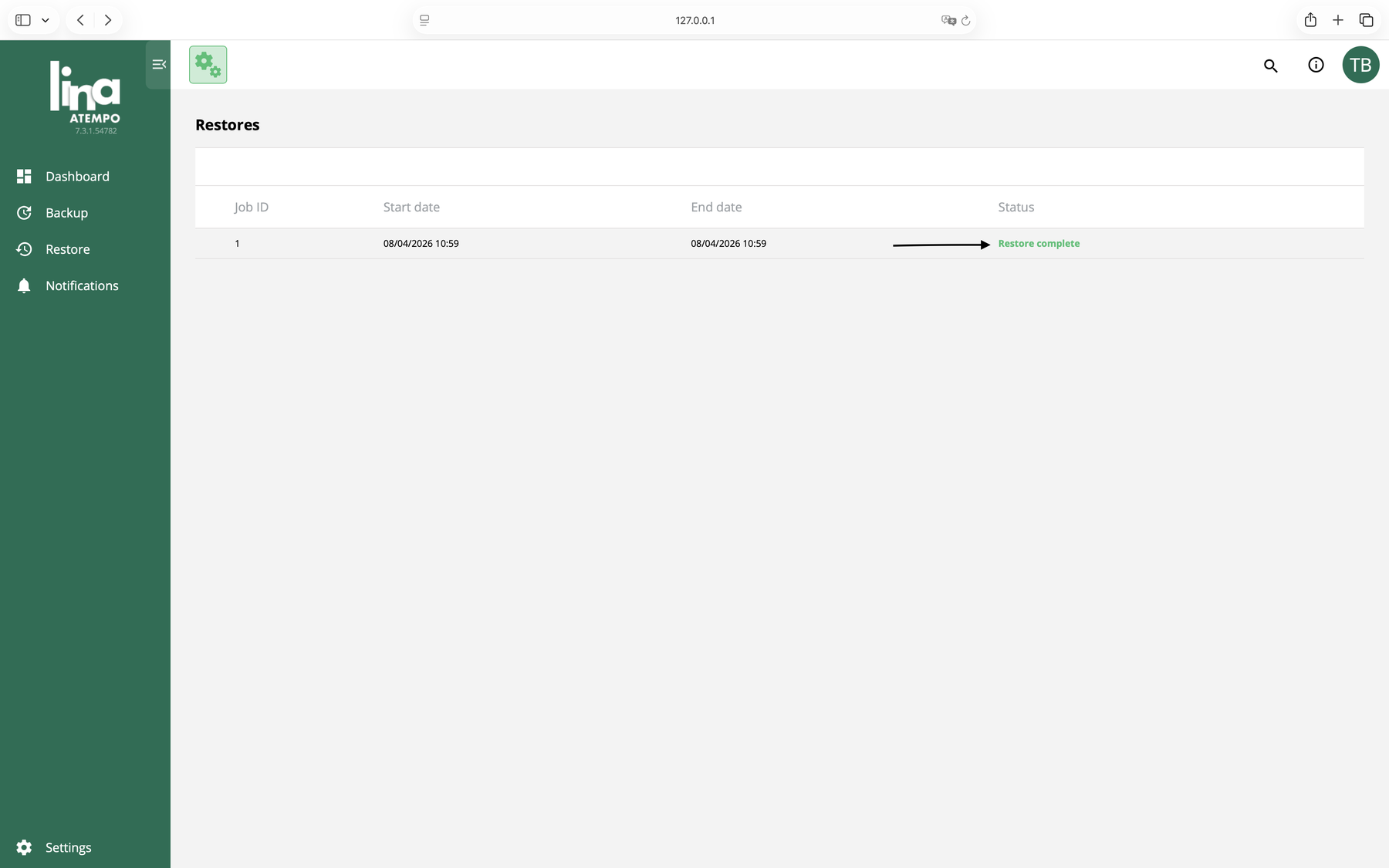
The Restores list shows the job running, with a progress percentage. When it is done the status changes to Restore complete.
How long it takes. How long this takes depends on how much you are getting back. One file is usually quick. A whole folder takes longer. Let it finish before you close anything.
Click to enlarge
The Restores list showing a job in progress
Click to enlarge
The Restores list showing the job finished
Get a file back on this computer

Check what came back

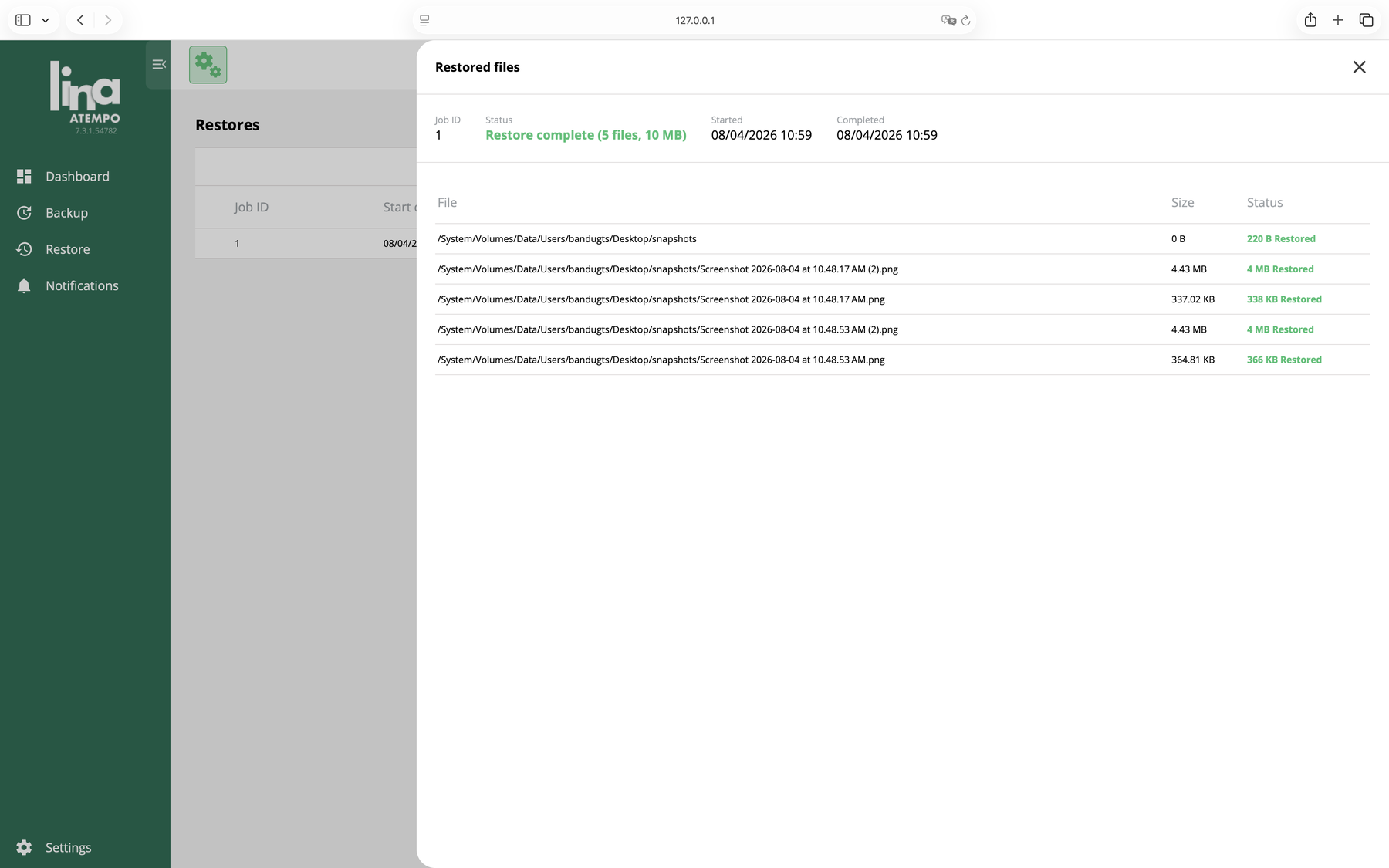
Click the job to see every file that was restored and where it went. Open the file and check it looks right before you delete anything else.
Click to enlarge
The Restored files panel listing every file that came back and where it went
Get a file back from an older computer

Ask us to recover your files

When the computer your files were on is gone, replaced or will not start, send KAUST IT a recovery request. We will use the web recovery process to retrieve the files from that computer's backup and provide them together in a compressed ZIP file.
Your backup is stored separately. Files that were successfully backed up are held on KAUST IT infrastructure, not only on the computer itself. Losing the computer does not automatically mean losing its existing backup.

This is the one task on this page you cannot do yourself. Recovering from a computer you no longer have needs access to the backup for that machine, so we handle it.

Request file recoveryOpens in a new tab, so these steps stay open beside it.

What to include

  • The file or folder names
  • Where they were on the computer
  • Roughly when the version you want was last saved
  • Whether the file was deleted, overwritten or corrupted
  • That the files were on a Windows computer
Two months. Each file stays recoverable for two months, counted from the last time it was backed up. If that computer stopped backing up more than two months ago, the files can no longer be recovered.

Prefer to talk it through? Ask VITA or the IT Service Center. Our contact options include phone and walk-in support.

Get a file back from an older computer

Ask us to recover your files

When the computer your files were on is gone, replaced or will not start, send KAUST IT a recovery request. We will use the web recovery process to retrieve the files from that computer's backup and provide them together in a compressed ZIP file.
Your backup is stored separately. Files that were successfully backed up are held on KAUST IT infrastructure, not only on the computer itself. Losing the computer does not automatically mean losing its existing backup.

This is the one task on this page you cannot do yourself. Recovering from a computer you no longer have needs access to the backup for that machine, so we handle it.

Request file recoveryOpens in a new tab, so these steps stay open beside it.

What to include

  • The file or folder names
  • Where they were on the computer
  • Roughly when the version you want was last saved
  • Whether the file was deleted, overwritten or corrupted
  • That the files were on a macOS computer
Two months. Each file stays recoverable for two months, counted from the last time it was backed up. If that computer stopped backing up more than two months ago, the files can no longer be recovered.

Prefer to talk it through? Ask VITA or the IT Service Center. Our contact options include phone and walk-in support.

Atempo Lina is installed

The app is on your computer now. It is not saving anything yet though, because it does not know which folders matter to you.

One more task and you are covered. Tell it which folders to protect. It takes about a minute.

You are backed up

Your folders are protected from now on. Atempo Lina keeps up on its own in the background, so there is nothing to remember and nothing to run each week.

The first backup can take a while. After that only your changes get copied, and each file stays recoverable for two months after it was last saved.

Open the Dashboard once in a while to confirm your files are still being saved. It takes seconds and it is the one habit worth having.

Your file is back

Check the file opens and looks right before you delete anything else.

If the copy that came back is older than you hoped, run the restore again and pick an earlier date and time.

Request sent

We will be in touch when your recovered files are ready. Files recovered through the web recovery process are provided together in a compressed ZIP file.

Open them and check they are the ones you expected before you delete anything else. If something you needed is missing, it may never have been added to the backup list on that computer, or it may have been last saved more than two months ago.

Something not right? Ask VITA or the IT Service Center and we will help.

Need it on paper? Switch to all steps, then print the page.

Good folders to protect

  • Desktop, Documents and Downloads
  • Drafts and data you are working on now
  • Anything that only exists on this computer

Leave these out

  • Folders OneDrive, SharePoint or Google Drive already saves
  • A full copy of your whole hard drive
  • Long term storage of finished projects

Limits worth knowing

  • Each file is kept for two months after its last backup
  • 512 GB per computer, and backup stops when it is full
  • Needs the KAUST network, on campus or over VPN

Where it works

KAUST managed Windows and macOS laptops and desktops.

Worth checking

The Dashboard shows what is protected and when your files were last saved. Check it occasionally to make sure your backup is still current.

Do not back up the same folder twice. Skip any folder that OneDrive, SharePoint or Google Drive already saves for you. Here is why. Those services keep your files up to date in the cloud while you work. Atempo Lina works in a different way. It keeps its own copy, and a restore brings back the copy from the date you pick. If a folder is in both places, you can end up with two versions of the same file and no easy way to tell which one is newer. Pick folders your cloud storage does not already handle.

Common questions and situations

These are the things people ask us about most often. If something does not look right, start here.

My backup list is empty

That means nothing is being saved yet. Atempo Lina only protects the folders on your Agent rules list, so an empty list means no folders have been chosen. Adding them takes about two minutes. Use Choose what to back up above.

My macOS computer says it is protected, but nothing is

Atempo Lina cannot read a folder until macOS grants access to it. If you clicked Don't Allow when the prompt appeared, that folder is not being saved. Add it again and click Allow. If nothing at all is being saved, open System Settings, then Privacy & Security, then Full Disk Access, and check that Agent_UI and HNagent are listed and switched on. Quit and reopen the app afterwards.

I have been working off campus and my backup looks out of date

Atempo Lina saves your files over the KAUST network. On campus that means a wired connection, iCampus or Uni-Fi. Off campus, connect to VPN and both backups and restores work normally, though how quickly they run depends on your internet connection at home. While you are off the network and not connected to VPN, nothing new is saved, and it starts again on its own once you reconnect.

It is asking me to sign in

This is normal. Atempo Lina now opens in your browser, and it asks for your KAUST username in the form username@kaust.edu.sa with your usual KAUST password. The Maintain the connection toggle can be left either way.

My computer is gone, broken or will not start

Files that were successfully backed up are held on KAUST IT infrastructure, not only on the computer itself, so losing the computer does not automatically mean losing them. Use Get a file back from an older computer above to send us a recovery request. Only files from folders on that computer's backup list, last backed up within the past two months, can be recovered.

The file I need was never backed up

If the folder was never added to your list and the computer is gone, the file cannot be recovered. The same applies if it was last saved more than two months ago, since each file is kept for two months after its last backup. Checking your list takes about a minute, and it is worth doing before you need it.

My backup has stopped

There are two usual reasons. Each computer has 512 GB of backup space, and backup stops once that is full. The other is being away from the KAUST network, which pauses backup until you reconnect. Open Atempo Lina and look at the Dashboard. It shows how much space you are using and when your files were last saved. If you are at the limit, ask VITA or the IT Service Center for help. You may need to remove folders you no longer need protected or discuss whether additional capacity is appropriate.

My file came back with a different name

Nothing has gone wrong. Rename was chosen during the restore, so both copies were kept rather than one replacing the other. Look for the same name with a number added. Open both and keep the one you want.

My files came back as a ZIP file that will not open

Restores you run yourself through Atempo Lina go directly back to the selected restore location, so they do not create a ZIP file. Recoveries from an older computer are provided as a ZIP file, which is where this issue can come up. On Windows, very long file names inside the zip can stop it opening. Install 7-Zip from Software Center and open the zip with that. On macOS, the built in tool will not open a zip larger than about 4 GB, or one holding more than roughly 65,000 files. If that happens, ask us to send the files in smaller batches.

I need research data back from DataWaha or SDataWaha

That is a different service. Atempo Lina protects files on your laptop or desktop only. For research storage, see Research Data Storage and Protection.

Not seeing your question here? Ask VITA or the IT Service Center and we will help you sort it out.