Graduating students | Google Workspace
Use Google Takeout Transfer, shown in Google as Transfer your content, to copy eligible content from your KAUST Google Account to a personal Google Account you control.
1. Request access
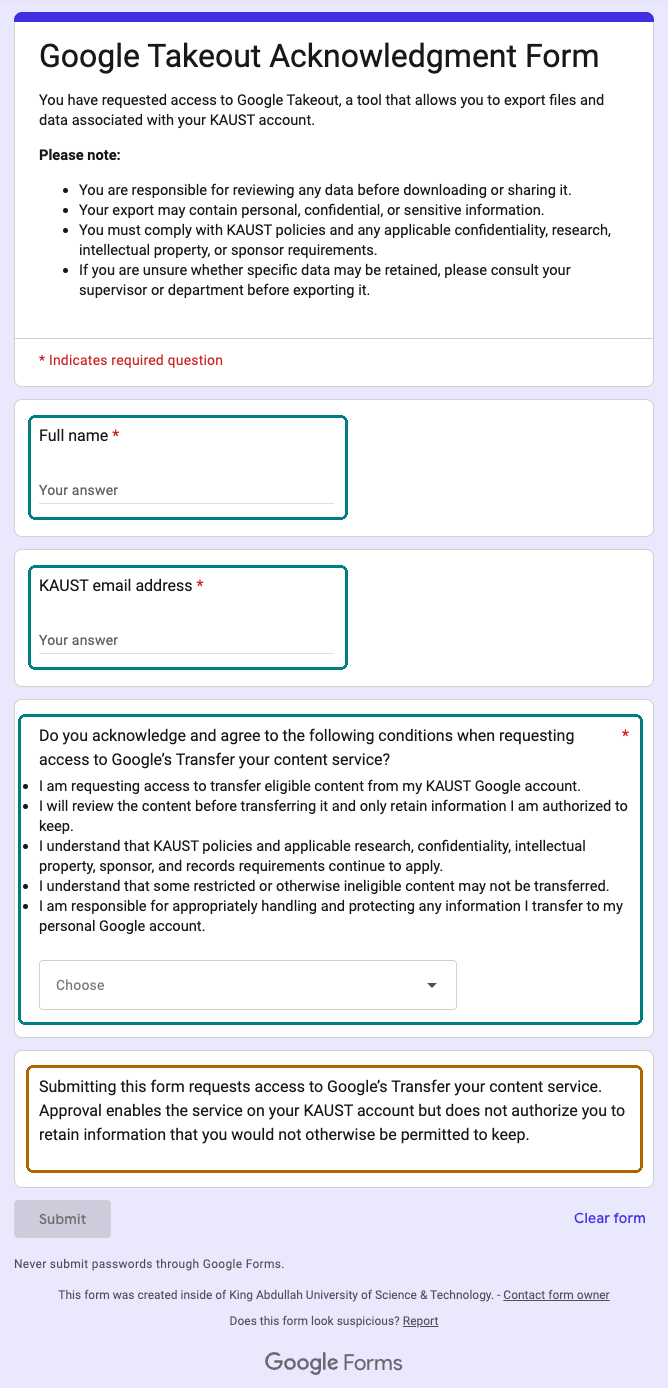
Complete the KAUST acknowledgement form before starting.
2. Start the transfer
Connect your personal Google Account and choose what to copy.
3. Check the result
Wait for Google's completion email, then verify your copied content.
Start while your KAUST account is still active. A transfer may take up to a week, so do not leave this until your final day.
Google storage is shared across Gmail, Google Drive, and Google Photos. Make sure your personal account has enough available space for the content you plan to transfer.
Check your Google storageKAUST policies and applicable research, confidentiality, intellectual property, sponsor, and other requirements still apply. If you are unsure, check with your supervisor, principal investigator, department, or the appropriate information owner before transferring content.
Some restricted or otherwise ineligible content may not transfer. The products available to you, such as Drive, Gmail, or Photos, also depend on your KAUST account settings and Google's eligibility checks.
Required first
Before using Google Takeout Transfer, complete the KAUST Google Takeout acknowledgement form and wait for your request to be processed. The form records your request and your acknowledgement of responsibility for the information you retain.
Open Google Takeout access formFollow the screens below. The highlighted controls show where to go next. Personal details and example verification codes have been concealed in the screenshots.
Google may change labels or screen layouts over time. After KAUST IT enables access, you can also open Google Transfer your content while signed in with your KAUST account.
Complete the KAUST Google Takeout acknowledgement form using your name and KAUST email address. Read the acknowledgements carefully, submit the form, and wait until KAUST IT enables access.
Keep in mind: Request access before trying to transfer your content.
Open the Google Takeout access form
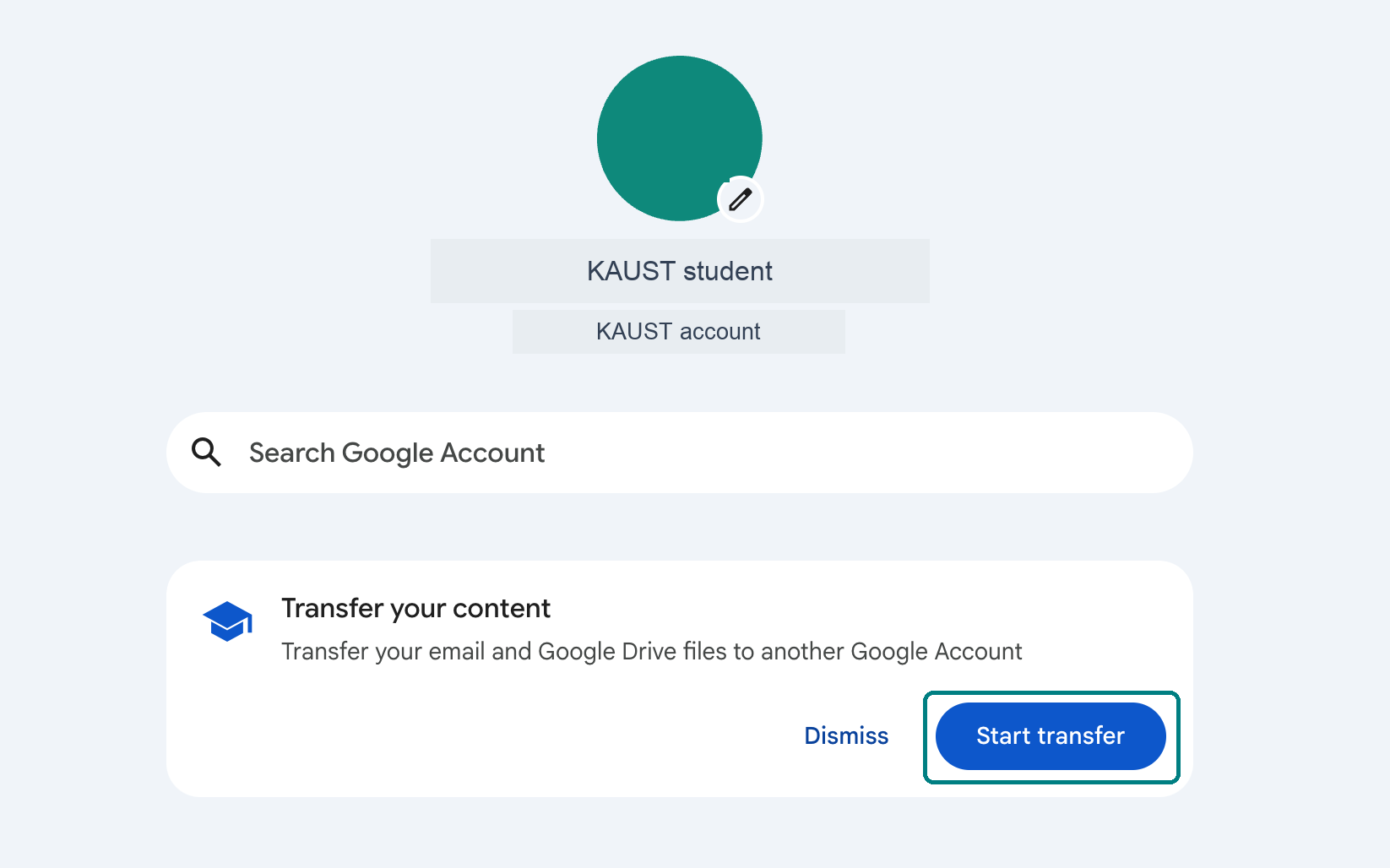
Sign in to your KAUST Google Account. Open Google's Transfer your content service, then choose Start transfer.
Keep in mind: Use your KAUST account for this step, not your personal account.
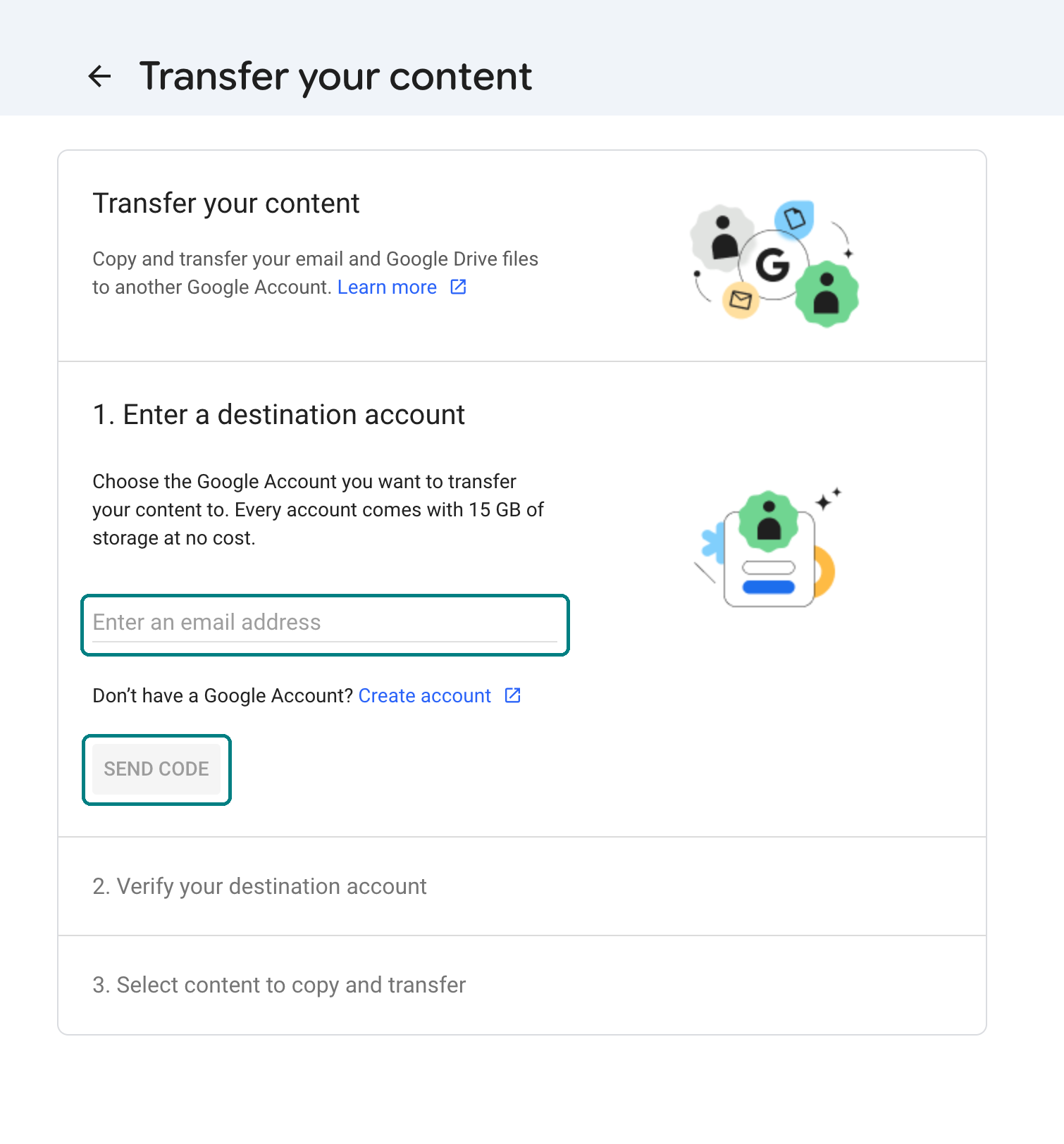
Enter the email address of the personal Google Account that will receive your eligible content, then select Send code.
Keep in mind: Make sure the destination account belongs to you and that you can sign in to it.
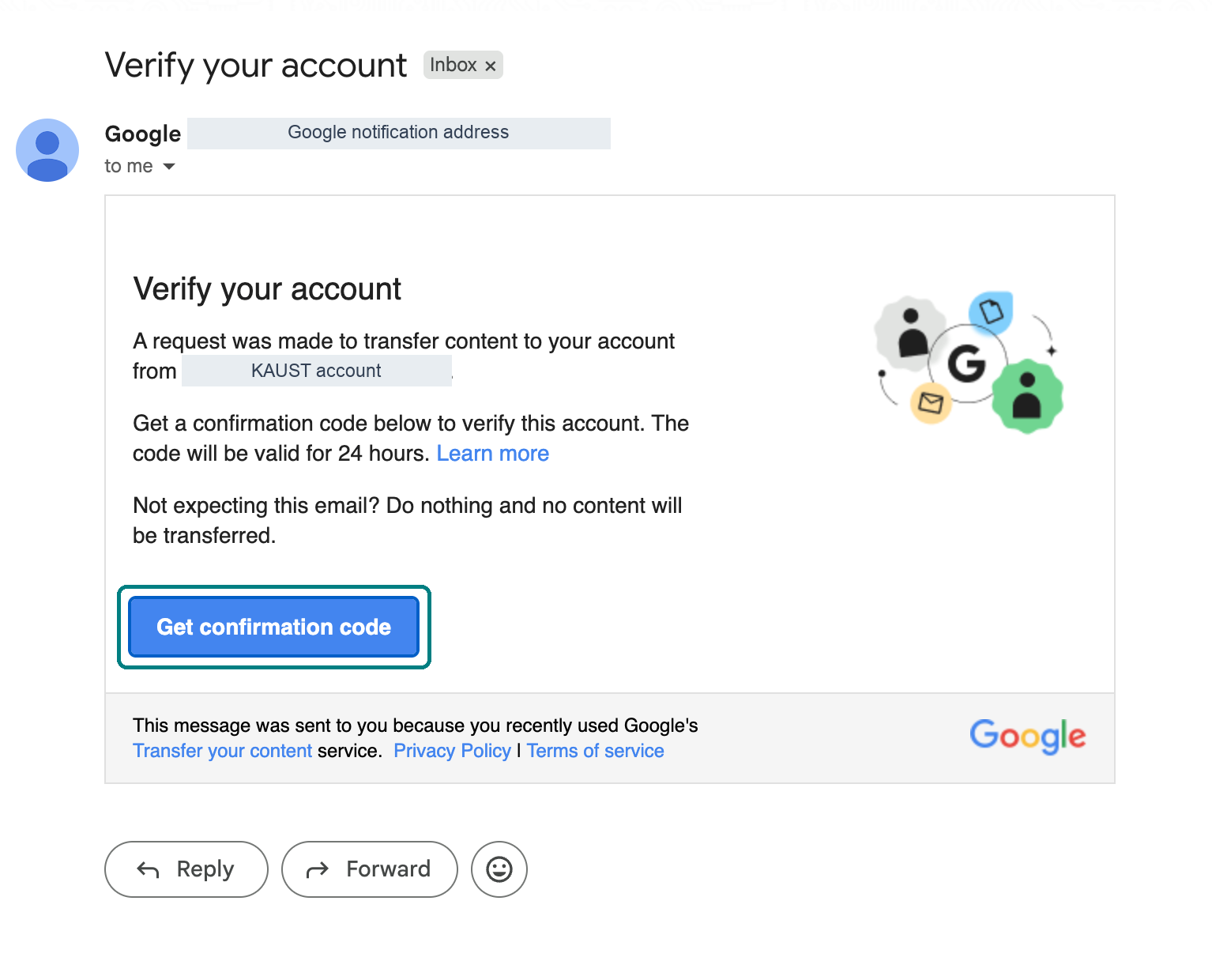
Open your personal Google Account inbox, find Google's account verification message, and select Get confirmation code.
Keep in mind: Check your spam folder if the message does not arrive.
Follow Google's prompt to display the confirmation code. Keep that page open, or copy the code securely so you can use it in the next step.
Keep in mind: Codes are time-limited. Do not share verification codes with anyone.
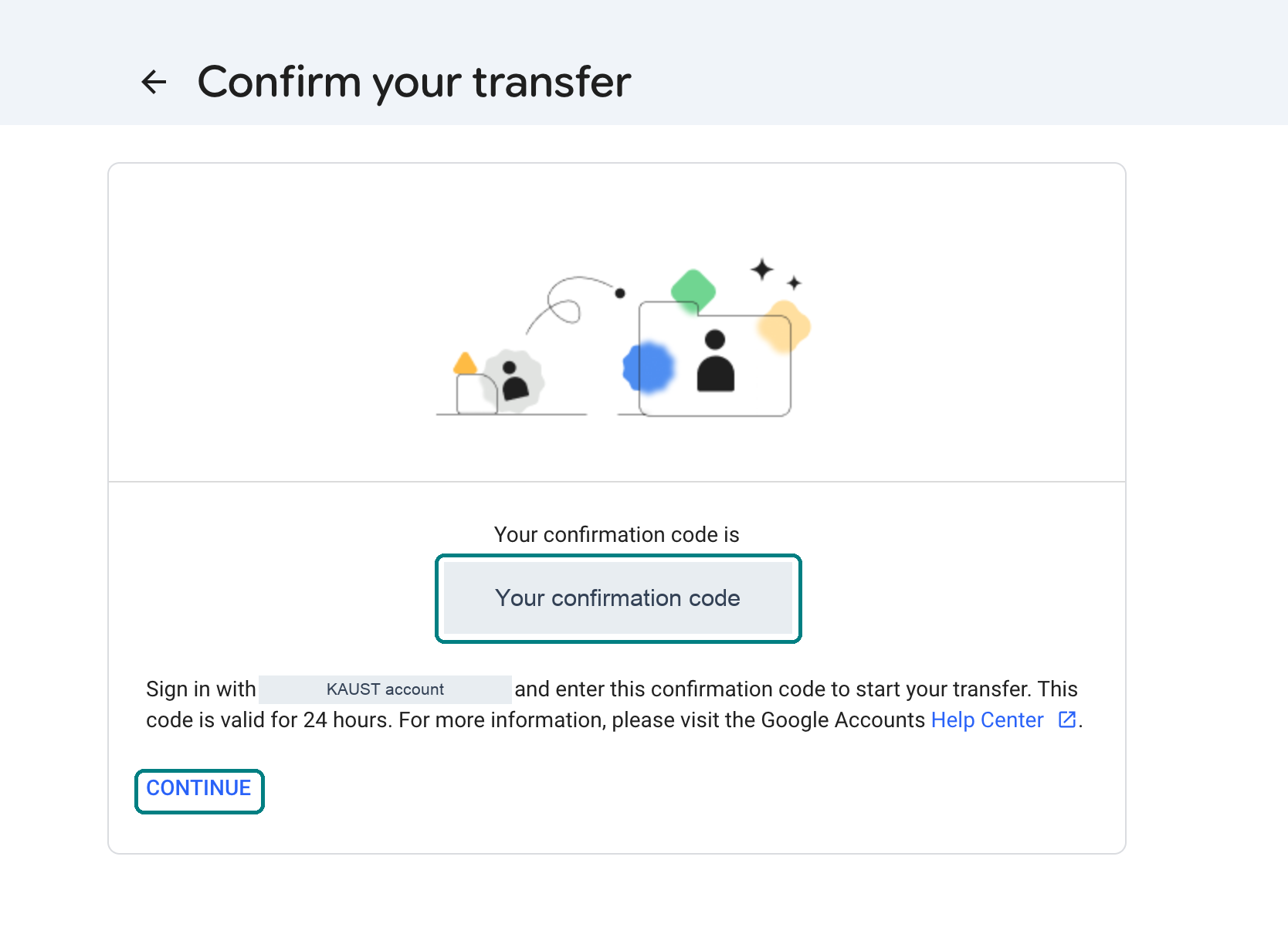
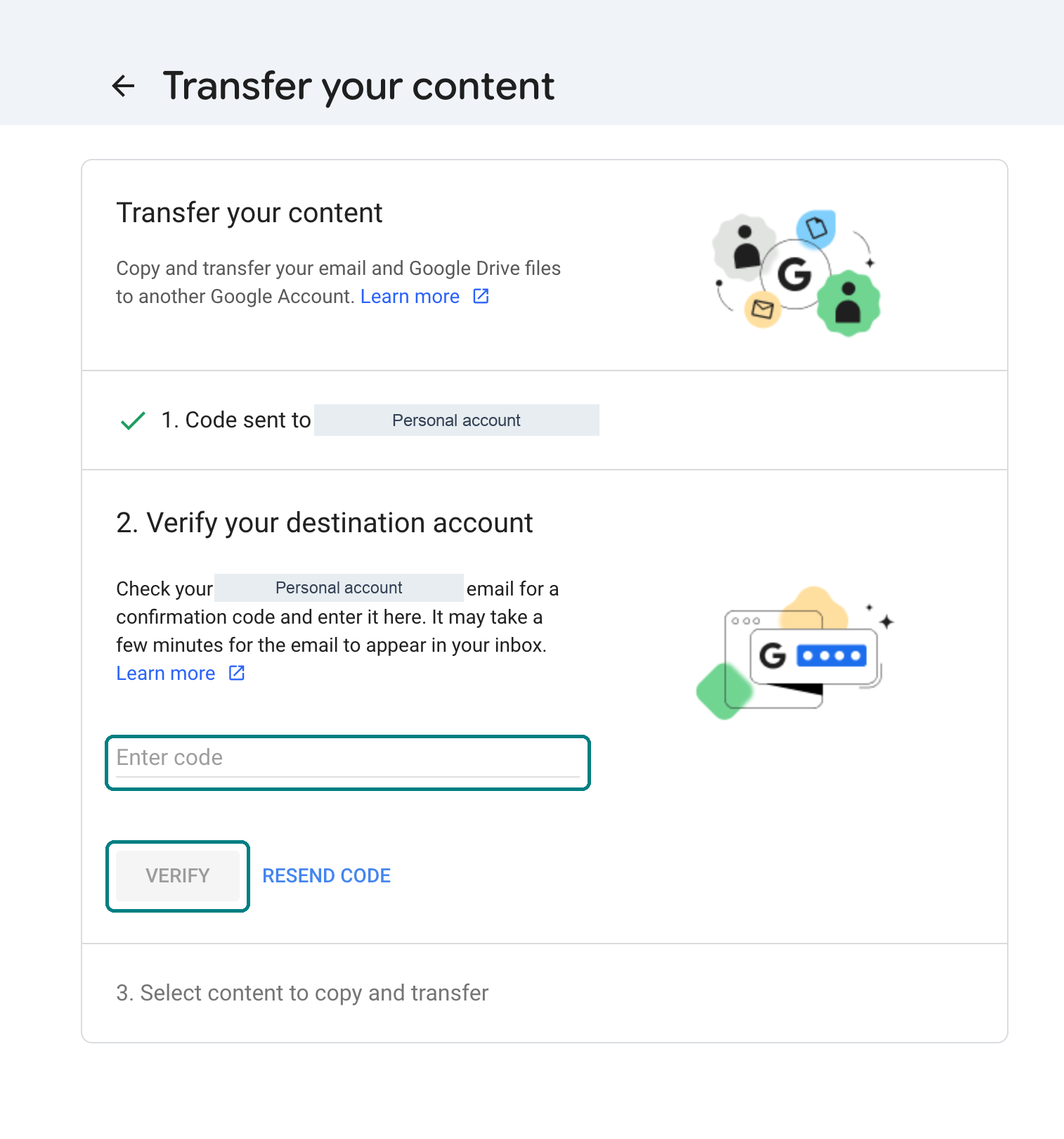
Return to the Transfer your content page in your KAUST account, enter your confirmation code, and select Verify.
Keep in mind: Google may keep the Verify button disabled until the complete code has been entered.
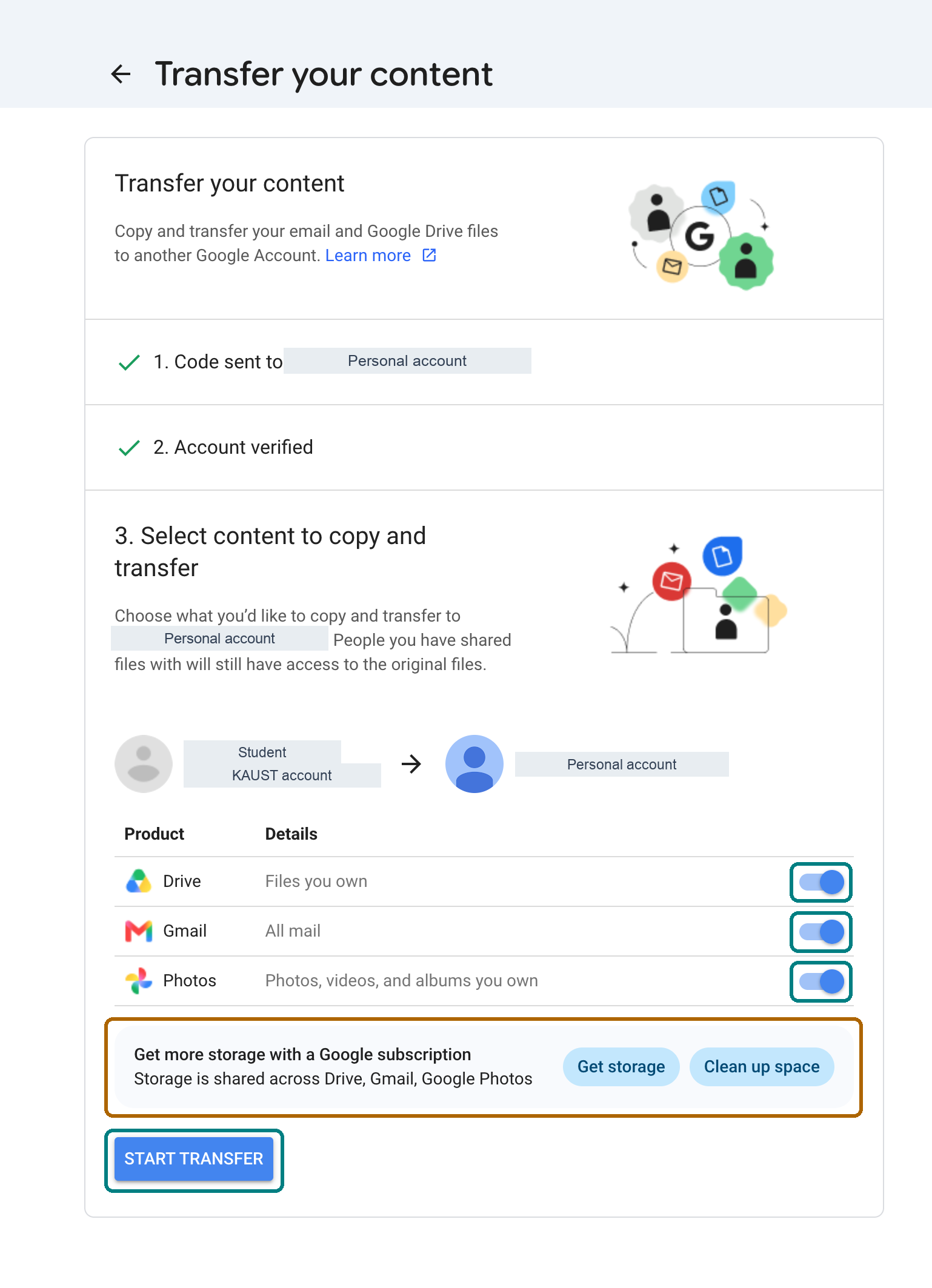
Review the content types shown and switch off anything you should not or do not want to copy. The example shows Drive, Gmail, and Photos. Confirm that your personal Google Account has enough free storage, then select Start transfer.
Keep in mind: Only transfer information you are authorized to retain. Available products depend on your account settings.
Google displays a confirmation that copying is in progress. Select View history if you want to review its progress.
Keep in mind: This screen confirms that the transfer has started. It does not mean the transfer has finished.
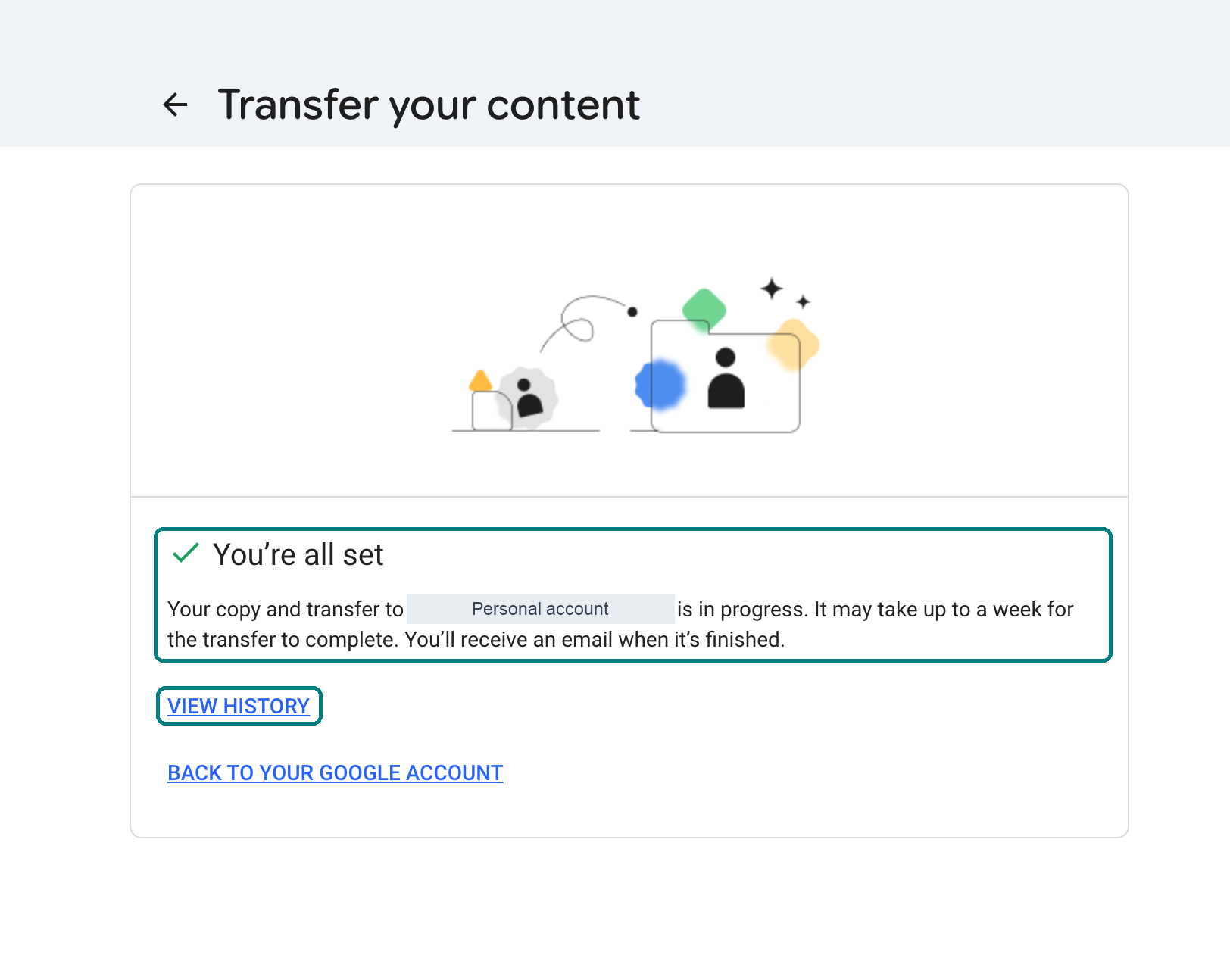
Google emails you when the transfer begins. The process may take up to a week. Wait for a separate completion notification, then sign in to your personal account and check that the content you expected is present.
Keep in mind: Some restricted or otherwise ineligible content will not transfer.
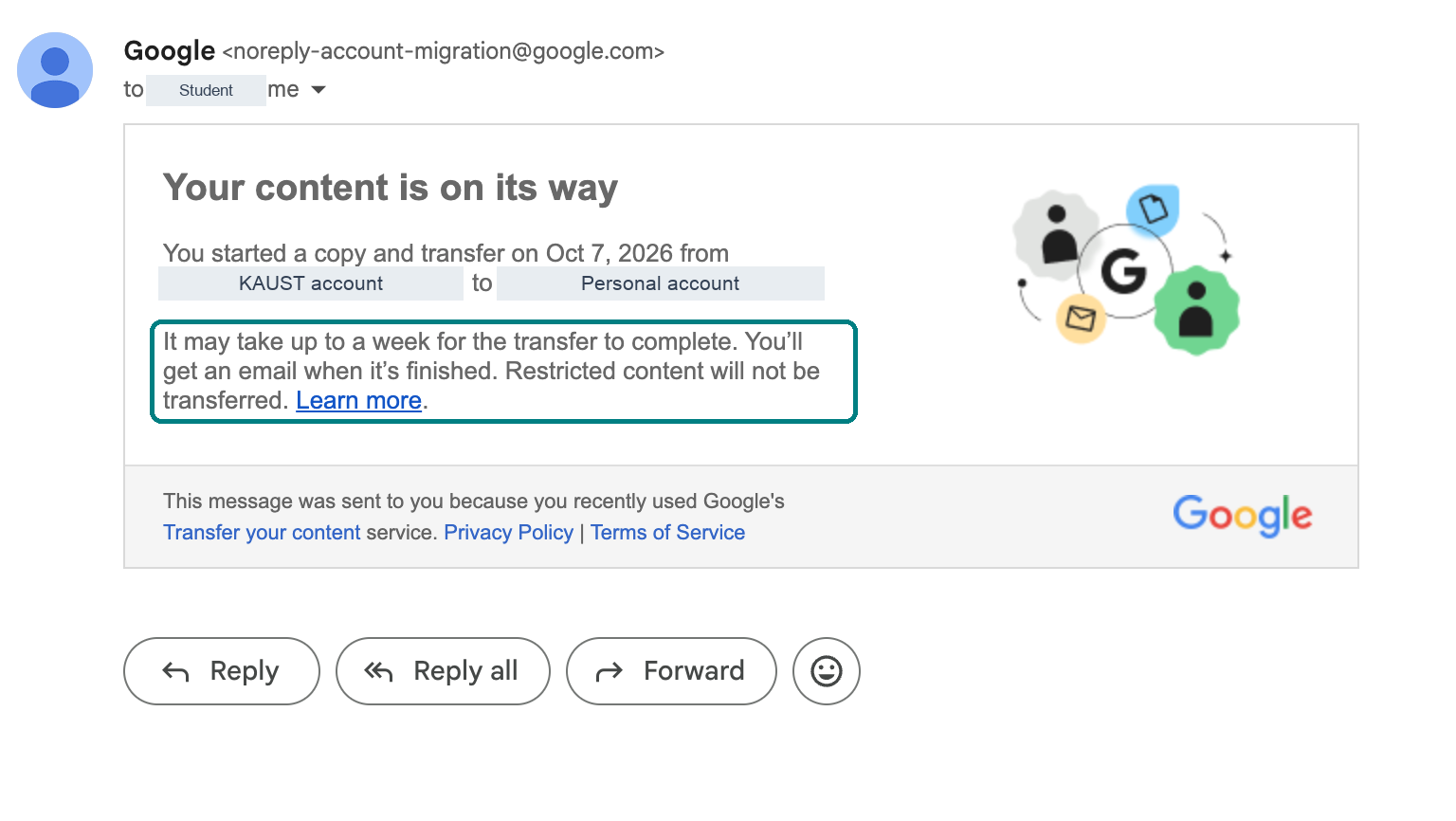
Google's You're all set message and its first notification email mean that copying has started. They do not confirm that the transfer is complete.
Wait for Google's completion notification. Then sign in to your personal Google Account and check that the eligible items you intended to copy are present and accessible.
Review any missing or skipped content while your KAUST account is still accessible.
Important: This process copies eligible content. It does not give permission to keep KAUST information that you are not authorized to retain.
For help requesting access or starting the transfer, contact KAUST IT.
For questions about whether specific research or institutional information can be retained, check with the relevant supervisor, principal investigator, department, or information owner.
Contact KAUST IT
